DNS on the Wire: Queries, Answers and the Lookups You Didn't Type (Wireshark 101, Lesson 5)
A DNS lookup is two UDP packets matched by a transaction ID. How to read the flags, the reply codes, A, AAAA and CNAME records and TTLs in Wireshark, and why one short name caused six queries. Lesson 5 of Wireshark 101.
lesson 5 of 8 · course Wireshark 101
- 1What a capture shows
- 2Capture vs display filters
- 3ARP: finding the neighbor
- 4DHCP: getting an address
- 5DNS: names to addresses
- 6TCP: handshake, data, teardown
- 7TLS without decrypting it
- 8Troubleshooting a broken path
A DNS lookup on the wire is usually two packets: a query sent over UDP to port 53, and a response that copies the question back and adds the answers. A 16-bit transaction ID ties the two together. Everything else you need to read a lookup is in a handful of fields: the flags, the reply code, the records and their TTLs. And the most useful thing a capture shows you about DNS is often what the computer asked for that you never typed.
Networking 101 described DNS as the network’s phone book. This lesson opens the phone book’s envelope. Every example comes from the Wireshark 101 lab, where a laptop looks up names from a small DNS server two routers away.
What does a DNS query look like in Wireshark?
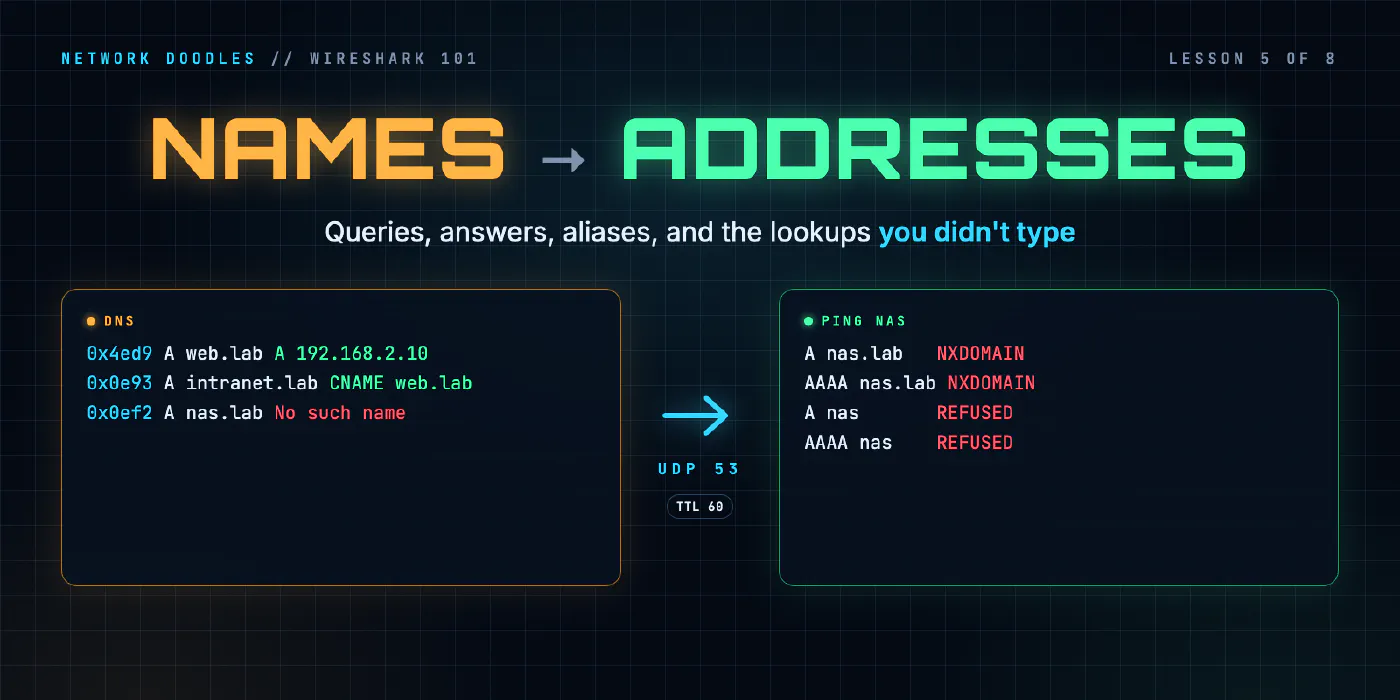
Here are three lookups from the lab: dig asking for web.lab, intranet.lab and nas.lab.
4 1.186582542 192.168.1.175 → 192.168.2.53 DNS 90 Standard query 0x6aec A web.lab OPT
5 1.190101167 192.168.2.53 → 192.168.1.175 DNS 94 Standard query response 0x6aec A web.lab A 192.168.2.10 OPT
6 1.240939542 192.168.1.175 → 192.168.2.53 DNS 95 Standard query 0xc2f2 A intranet.lab OPT
7 1.241206167 192.168.2.53 → 192.168.1.175 DNS 120 Standard query response 0xc2f2 A intranet.lab CNAME web.lab A 192.168.2.10 OPT
8 1.302522250 192.168.1.175 → 192.168.2.53 DNS 90 Standard query 0x822d A nas.lab OPT
9 1.303036709 192.168.2.53 → 192.168.1.175 DNS 78 Standard query response 0x822d No such name A nas.lab OPT
Six packets, three conversations. Each line tells you most of the story before you open anything: the
transaction ID (0x6aec), the record type asked for (A), the name, and in the response, the answer or the
reason there isn’t one.
Why DNS uses UDP, and what the transaction ID is for
UDP (User Datagram Protocol) sends one packet and forgets about it. There’s no handshake and no connection, which is exactly what you want for a question that fits in one packet: a lookup costs one round trip, not three. The price is that UDP doesn’t match answers to questions for you.
That’s the job of the transaction ID, a 16-bit number the client picks at random for each query. The server copies it into the response, and the client accepts only a response whose ID (and ports) match a question it asked. RFC 1035 defines it. The randomness matters: a predictable ID makes it easier for someone else to slip in a forged answer first.
Wireshark does the matching for you. Open a response and you’ll find [Request In: 4] and
[Time: 3.518625 milliseconds]. That time is dns.time, the gap between question and answer, and it’s the
quickest way to find a slow DNS server: filter dns.time > 0.1 to see every answer that took longer than 100
ms. In the lab, the first answer took 3.5 ms and the next two under 0.6 ms. A capture on the laptop’s cable
can’t tell you why the first one was slower. It can only tell you that it was, which is where every
investigation starts.
What do the DNS flags mean?
Every DNS message has a 16-bit flags field. Wireshark shows it as one hex number and then breaks it out bit by
bit. Here’s the answer for web.lab:
Flags: 0x8580 Standard query response, No error
    1... .... .... .... = Response: Message is a response
    .000 0... .... .... = Opcode: Standard query (0)
    .... .1.. .... .... = Authoritative: Server is an authority for domain
    .... ..0. .... .... = Truncated: Message is not truncated
    .... ...1 .... .... = Recursion desired: Do query recursively
    .... .... 1... .... = Recursion available: Server can do recursive queries
    .... .... .... 0000 = Reply code: No error (0)
| Flag | Set by | Means |
|---|---|---|
| QR (Response) | both | 0 in a query, 1 in a response. Filter dns.flags.response == 0 for questions only |
| AA (Authoritative) | server | “I own this name. This answer comes from my own data, not from a cache” |
| TC (Truncated) | server | “the full answer didn’t fit; ask again over TCP” |
| RD (Recursion desired) | client | “if you don’t know, go and find out for me” |
| RA (Recursion available) | server | “I’m willing to do that” |
The two recursion flags describe the two kinds of DNS server. A recursive resolver (your home router, your
company’s DNS servers, a public resolver) takes your question and chases it across the internet for you. An
authoritative server holds the records for a zone and only answers for those. The lab’s server is a small
dnsmasq that does a bit of both, which is why its answer for web.lab has AA and RA set at once.
Notice that the answer for nas.lab came back with flags 0x8183: AA is off. The server is saying “no
such name” without claiming to be the authority for it. Small details like that tell you what kind of server
you’re talking to.
NXDOMAIN, REFUSED, SERVFAIL: what does each reply code tell you?
The last four bits of the flags are the reply code (rcode). It’s the server’s one-word verdict on your question, and it’s worth more than anything else in the packet when a lookup fails.
| rcode | Name | Wireshark shows | What it tells you |
|---|---|---|---|
| 0 | NOERROR | No error | the server answered. It may still have no records of the type you asked for |
| 2 | SERVFAIL | Server failure | the server tried and couldn’t get an answer: often a broken upstream or a DNSSEC failure |
| 3 | NXDOMAIN | No such name | the name doesn’t exist. The server is sure |
| 5 | REFUSED | Refused | the server won’t answer this question for you, by policy |
The difference between NXDOMAIN and REFUSED is the difference between “the name is wrong” and “you asked the wrong server”. NXDOMAIN is about the name: check the spelling, the domain, the record. REFUSED is about the server: it isn’t configured to answer that question, or to answer you. A capture tells them apart in one glance, while most applications report both as the same vague “host not found”.
One code that catches people out is NOERROR with an empty answer section. It means the name exists but has no record of the type you asked for, such as a name with an IPv4 address and no IPv6 one. RFC 2308 calls this NODATA. It isn’t an error, even though nothing useful came back.
A, AAAA and CNAME records
An answer is a list of resource records. Each has a name, a type, a class (always IN, for internet), a
TTL and a value.
| Type | Value |
|---|---|
| A | an IPv4 address, 4 bytes |
| AAAA | an IPv6 address, 16 bytes |
| CNAME | another name: “this name is an alias; the real one is over there” |
The intranet.lab response shows a CNAME at work:
Answers
    intranet.lab: type CNAME, class IN, cname web.lab
        Time to live: 60 (1 minute)
    web.lab: type A, class IN, addr 192.168.2.10
        Time to live: 60 (1 minute)
Two records in one response. The server didn’t just say “it’s really web.lab, go and ask about that”. It followed the alias itself and put web.lab’s address in the same packet, so the laptop got its answer in one round trip. That’s why the response is 120 bytes and web.lab’s alone is 94.
CNAMEs are everywhere on the real internet. A company’s www name is often a CNAME for a content delivery
network’s name, which can be a CNAME for another. A chain of three or four aliases in one response is normal.
When a site resolves to an address you didn’t expect, the CNAME chain in the response is the first thing to
read.
How long can an answer be cached? TTL
The TTL (time to live) on each record is the number of seconds the answer may be kept and reused before asking again. It has nothing to do with the TTL field in the IP header, which counts router hops. Same name, different job.
TTLs are a trade-off. A low TTL means a change (a new server address, a failover) reaches everyone quickly, at the cost of more lookups. A high TTL means fewer lookups and faster page loads, and a change that takes hours to reach everyone. The lab’s server hands out 60 seconds for everything.
Now the part that confuses people with their first DNS capture: caching happens off the wire. Windows, macOS and most Linux desktops keep a local cache, and browsers keep their own on top. If the answer is cached, the second lookup never leaves the machine, and your capture shows nothing at all. That’s not a failure to capture. It’s the cache doing its job. To see a lookup, clear the cache first, or capture on a host that doesn’t have one.
The lab’s hosts don’t cache. They’re small Alpine Linux machines with no caching service, so every lookup goes on the wire, every time. That’s handy for learning, and it’s worth remembering that your laptop at work behaves differently.
Negative answers can be cached too. RFC 2308 has an authoritative server send its zone’s SOA record (the
zone’s “start of authority”, with its timers) along with an NXDOMAIN, and that record says how long the “no”
may be kept. The lab’s NXDOMAIN carries no SOA at all: Authority RRs: 0.
What is the OPT record on the end of every line?
Every dig query and answer in the lab ends with OPT. That’s EDNS (Extension Mechanisms for DNS,
RFC 6891). The original DNS limited a UDP answer to 512 bytes. EDNS
adds a pseudo-record, type OPT (41), to the additional section, where the client says how big an answer it can
take, and leaves room for options:
<Root>: type OPT
    UDP payload size: 1232
    EDNS0 version: 0
    Option: COOKIE
dig offers 1,232 bytes and adds a DNS cookie, a small token that helps a server tell a real client from a spoofed one. None of it is part of the answer. If an answer is still too big, the server sets the TC flag and the client asks again over TCP.
Why did one short name cause six queries?
dig asks exactly what you tell it. Almost nothing else does. Ping, curl, your browser and your mail client
ask the operating system’s resolver, the library code that does lookups for programs, and the resolver
has its own ideas.
In the lab, the laptop got its resolver settings from DHCP (lesson 4):
search lab
nameserver 192.168.2.53
nameserver came from DHCP option 6. search lab is the search domain, from option 15: when a name looks
short, try it with .lab on the end. The rule for “short” is ndots, which defaults to 1 (see the
resolv.conf man page): a name with fewer dots than
that gets the search list tried first.
So here’s what the laptop sent when it ran ping nas:
 3 0.219553792 192.168.1.175 → 192.168.2.53 DNS 67 Standard query 0xc991 A nas.lab
 4 0.220102917 192.168.1.175 → 192.168.2.53 DNS 67 Standard query 0xcb5b AAAA nas.lab
 5 0.221055167 192.168.2.53 → 192.168.1.175 DNS 67 Standard query response 0xc991 No such name A nas.lab
 6 0.221235334 192.168.2.53 → 192.168.1.175 DNS 67 Standard query response 0xcb5b No such name AAAA nas.lab
 7 0.221357750 192.168.1.175 → 192.168.2.53 DNS 63 Standard query 0x968f A nas
 8 0.221519209 192.168.1.175 → 192.168.2.53 DNS 63 Standard query 0x97b8 AAAA nas
 9 0.221737250 192.168.2.53 → 192.168.1.175 DNS 63 Standard query response 0x968f Refused A nas
10 0.221890417 192.168.2.53 → 192.168.1.175 DNS 63 Standard query response 0x97b8 Refused AAAA nas
13 2.729063751 192.168.1.175 → 192.168.2.53 DNS 63 Standard query 0x968f A nas
14 2.729521918 192.168.1.175 → 192.168.2.53 DNS 63 Standard query 0x97b8 AAAA nas
15 2.730466668 192.168.2.53 → 192.168.1.175 DNS 63 Standard query response 0x968f Refused A nas
16 2.730674918 192.168.2.53 → 192.168.1.175 DNS 63 Standard query response 0x97b8 Refused AAAA nas
Read it in four steps:
- The search domain first.
nashas no dots, so the resolver triednas.labbeforenas. - A and AAAA, side by side. The resolver doesn’t know whether the program wants IPv4 or IPv6, so it asks for both at once, two queries per name, even on a network where nobody uses IPv6.
- The bare name.
nas.labwas NXDOMAIN, so it tried plainnas. The lab’s server only answers for names underlaband has nowhere else to ask, so it refused. - A retry. 2.5 seconds later the resolver sent the same two questions again, with the same transaction
IDs (
0x968f,0x97b8), got refused again, and gave up.
Six queries and two and a half seconds, for one word. Ping just said Try again.
Two more things in that listing are worth noticing. The queries are 67 and 63 bytes, against 90 for dig’s, because the laptop’s resolver (Alpine’s C library, musl) sends no OPT record at all. Different clients send different DNS, and that’s one reason “it works with dig” doesn’t prove an application’s lookup will work. And the retry reused its transaction IDs, which is how you can tell a retry from a new lookup at a glance.
What you won’t see in a capture
Plain DNS over UDP port 53 is the easy case. Three others show up less clearly, or not at all:
| Transport | What the capture shows |
|---|---|
| DNS over TCP, port 53 (RFC 7766) | a normal TCP connection carrying DNS. Wireshark decodes it. Used after a truncated answer, and for zone transfers |
| DNS over TLS, port 853 (RFC 7858) | a TLS connection to port 853. You can see that DNS happened, not what was asked |
| DNS over HTTPS (RFC 8484) | HTTPS on port 443, like any other web traffic. Nothing marks it as DNS |
The last one matters for troubleshooting. A browser that uses DNS over HTTPS doesn’t ask the resolver in
resolv.conf at all, so a capture filtered on dns stays empty while pages load fine. If you see no DNS and
expected some, ask whether the application is doing its own. Lesson 7
covers what an encrypted connection still shows.
What I see go wrong
“DNS is slow” that’s really the search list. A short or mistyped name that walks the search list, gets refused or times out, and retries, can cost seconds before the application gives up or falls back. From the application it looks like a slow network. In a capture, it’s a run of queries for names nobody typed. Count the queries a single lookup causes before blaming the server.
Reading only the first answer. Wireshark’s Info column shows the answers in order, and the first one is often a CNAME. The address you care about is at the end of the chain.
Treating REFUSED like NXDOMAIN. They send you to different places. NXDOMAIN: fix the name or the record. REFUSED: fix which server is asked, or what that server is allowed to answer.
Expecting every lookup on the wire. A cached answer never leaves the machine. An empty capture right after a successful lookup usually means the cache worked, not that capturing failed.
Forgetting AAAA. Hosts ask for both. A broken or slow AAAA answer can delay an application that only ever uses IPv4, because it waits for both answers before it connects.
Try it
Chapter 5 of the lab has you capture three lookups, read an address, a TTL, an alias and a name that doesn’t exist, then count what one short name really costs.
What’s next
Once the laptop has an address for web.lab, it opens a connection to it.
Lesson 6 follows that connection from the first SYN to the last FIN.
Related doodles
ARP on the Wire: Who Has This Address? (Wireshark 101, Lesson 3)
ARP turns an IP address into a MAC address with one broadcast question and one unicast answer. The fields, the neighbor cache, ARP for the gateway, …
Capture Filters vs Display Filters (Wireshark 101, Lesson 2)
Capture filters decide what's saved and can't be undone. Display filters decide what you see. BPF vs Wireshark fields, contains and matches, and why …
DHCP on the Wire: How a Host Gets an Address (Wireshark 101, Lesson 4)
DHCP in packets: four messages sent before the host has an address, the options that matter, leases and renewal, and how a relay with ip …