lesson 6.1 · chapter 6 of 7: joining and roaming · 30 min
Joining and roaming: how a laptop picks an access point
objective
Follow a laptop from switched on to connected: beacons, probes, authentication, association and the four-way handshake. Then explain why the laptop decides when to roam, what a roam threshold and margin do, why some laptops stick to a far-away access point, and what 802.11k, v and r add.
How does a laptop join, and when does it move?
Shop signs
Walking down a street you see shop signs without asking anyone: each shop puts its name up for passers-by. You can also call out “Anyone sell batteries?” and the shops that do answer. Wi-Fi works both ways:
- Beacons: each access point broadcasts a small frame roughly ten times a second (every 102.4 ms), for each network it offers. A beacon carries the network name (the SSID, service set identifier), the channel, the security it needs and the speeds it supports.
- Probes: a laptop can send a probe request, “Is network X here?”, and every access point that has it sends a probe response, which is a beacon sent just to that laptop.
A laptop builds its list of networks, and which access points offer each one, from beacons and probe responses. Each access point radio offering a network has its own address, the BSSID (it looks like a MAC address).
in one sentence Access points announce themselves with beacons; laptops can also ask with probes.
Joining: four exchanges
Once the laptop has picked an access point, usually the strongest one for the network it wants, joining takes four exchanges:
- Authentication. A leftover from early Wi-Fi: in nearly every network today it’s a formality, two frames that say hello and OK (open system authentication). The real security comes later. (With WPA3, lesson 7, this step carries a real exchange.)
- Association. The laptop asks to join (association request, with its capabilities) and the access point says yes (association response), giving it an association ID.
- The four-way handshake. On a secure network, four frames prove both sides know the network’s secret and agree fresh encryption keys for this connection. Lesson 7 opens it up.
- DHCP. Now the laptop is on the network like any wired host, and gets its IP address exactly as in Networking 101’s DHCP lesson.
in one sentence Authenticate (a formality), associate, four-way handshake, then DHCP.
Roaming: the laptop decides
As you walk away from an access point, its signal fades. At some point the laptop should move to a better one: that’s a roam. The surprise for most people is who decides: the laptop, not the access point or the controller. Each laptop, phone and scanner runs its own logic, and the common shape is:
- Stay put while the current access point is above the roam threshold (often somewhere around −70 to −75 dBm, and different on every device).
- Below it, start looking: listen for beacons, send probes.
- Move only to an access point that’s better by at least a margin (also called hysteresis), often 5 to 10 dB, so it doesn’t flip back and forth.
A roam is a reassociation to the new access point, then the handshake again. Done well, it takes a few tens of milliseconds and a call doesn’t notice.
in one sentence The laptop roams when its signal drops below its threshold and another AP is better by its margin.
Sticky clients
If a device’s threshold is set too low, say −80 dBm, it clings to an access point long after a much better one is right next to it. It still has a connection, at a terrible speed, and because it’s slow it hogs the access point’s airtime too. That’s a sticky client, one of the most common Wi-Fi complaints.
You can’t reach into every device to fix its settings. Networks help in three ways, each a standard:
| Standard | Nickname | What it does |
|---|---|---|
| 802.11k | neighbor reports | the access point tells the laptop which neighbors to check, so it scans faster |
| 802.11v | BSS transition management | the access point can suggest the laptop move (it can still say no) |
| 802.11r | fast transition | the keys for the next access point are worked out ahead, so the roam skips most of the handshake |
Some networks also disconnect a device whose signal falls very low, to force it to find a better access point. That’s a blunt tool, and it can make things worse for devices that roam badly anyway.
in one sentence Sticky clients cling too long. 802.11k helps them look, 802.11v nudges them, 802.11r makes the roam quick.
The frames, one at a time
A laptop joins AP 1 on a WPA2 network called office, then walks toward AP 2 and roams. Both access points offer the same network on different channels (lesson 2). The inside the frame box shows the important fields in each frame.
The frames to watch for:
| Frame | From | What it says |
|---|---|---|
| Beacon | AP | “I’m network office, on channel 36, WPA2.” |
| Probe request and response | laptop, then AP | “Is office here?” “Yes.” |
| Authentication | both | “Hello.” “OK.” |
| Association request and response | laptop, then AP | “May I join?” “Yes, you’re number 1.” |
| Four-way handshake | both | four EAPOL-Key frames that set up encryption |
| Reassociation | laptop, then new AP | “I’m moving to you from AP 1.” |
in one sentence Beacon, probe, authenticate, associate, handshake: and on a roam, reassociate and handshake again.
Watch a laptop join, then roam
Now walk a laptop through the office from the earlier lessons. Three access points at 5 dBm, a laptop at the start of a walk, and a graph of every access point’s signal along the way.
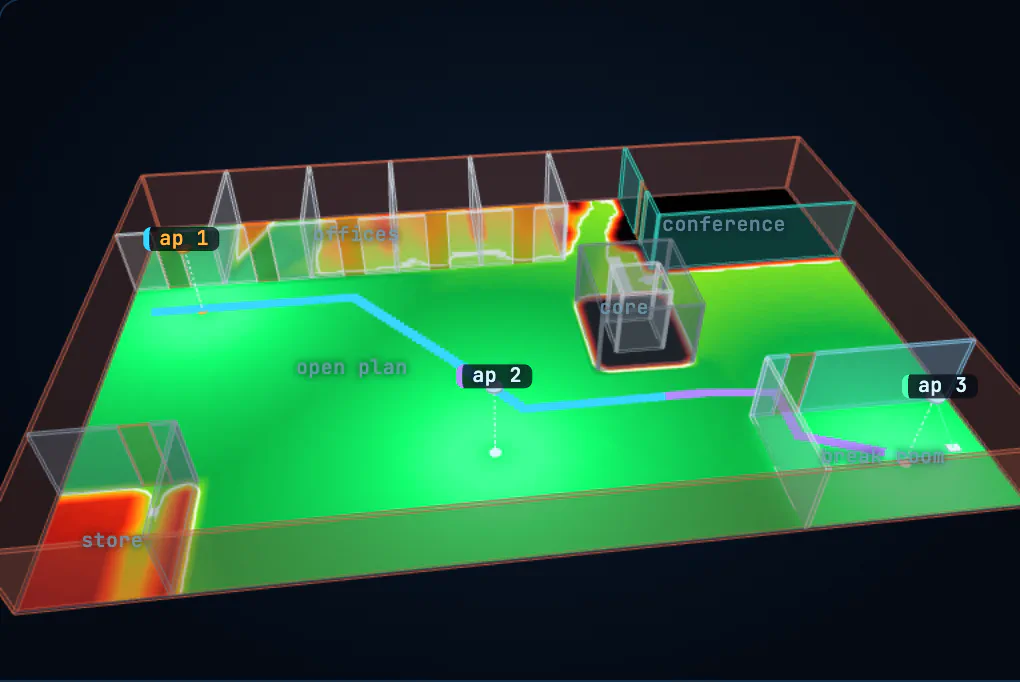
Two tasks, each checked by the lab:
- Make a sticky client. Change the laptop’s roam threshold so it clings to AP 1 until the break room door.
- Tune the roaming. Starting from a sticky −82 dBm, keep the signal above −72 dBm the whole walk, without flapping back to an access point it just left.
Press Walk the path to walk. The trail on the floor and the thick line on the graph show which access point the laptop is using; dotted lines mark each roam. You can also drag the laptop yourself and read why it stayed or moved.
in one sentence The laptop joins in four steps, and roams when its signal drops below its threshold and a better AP is past its margin.
Diagnose the complaint
A user says: “In the meeting room my laptop shows full bars, but video calls stutter. Everyone else’s are fine.” The meeting room has its own access point. A quick look at the user’s laptop shows it connected at −79 dBm, to an access point at the other end of the floor.
- What’s going on?
- Why does the laptop show full bars?
- Give two fixes, one on the laptop and one on the network.
hint
Which access point is it on, and when would it have last chosen one?
show the solution
- A sticky client. The laptop joined the far access point earlier, maybe at a desk near it, and its roam threshold is lower than −79 dBm, so it has never gone looking, even though the meeting room’s own access point would give it −50 dBm.
- Bars are each maker’s own scale, and some show connected as full bars. The −79 dBm number tells the truth.
- On the laptop: many Wi-Fi drivers have a roaming aggressiveness setting; raise it, or update the driver. Simply turning Wi-Fi off and on makes it pick the strongest access point again. On the network: turn on 802.11k and 802.11v so access points can point it at better neighbors, and check whether the far access point’s power is higher than it needs to be, since a loud distant access point attracts sticky clients.
Back to lesson 5 for placing access points, or on to lesson 7, which opens up the four-way handshake.
5 check: test yourself
Pick an answer for each question. You'll see straight away whether it's right, and why. Questions marked what happens next? are about the animations.
Who decides when a laptop moves from one access point to another?
Wi-Fi roaming is client-driven. Access points and controllers can suggest (802.11v), but the laptop makes the call.
What’s a beacon?
Every 102.4 ms or so, each network on each access point announces itself. A laptop listening to beacons can find networks without saying a word.
what happens next?A laptop’s roam threshold is −75 dBm. It’s on AP 1 at −72 dBm, and AP 2 right next to it is at −50 dBm. What does it do?
That’s a sticky client. Until the signal drops below its threshold, the laptop doesn’t go looking, however good the alternative.
Why do laptops wait for another access point to be better by a margin (hysteresis) before moving?
Signals wobble by a few dB all the time. Without a margin, a laptop halfway between two access points would bounce between them.
What does 802.11r (fast transition) speed up?
Without it, a roam on a secure network means a whole new key exchange (and on 802.1X networks a trip to the RADIUS server), long enough to glitch a call.