Parsing Show Output: Regular Expressions and TextFSM (Python 101, Lesson 5)
Turn show ip interface brief into a list of dicts twice, with a regular expression and with an ntc-templates TextFSM template, see how a template gets picked, and when each one is the right tool.
lesson 5 of 8 · course Python 101 for network engineers
- 1Running Python
- 2Strings, lists and dicts
- 3Loops, conditionals and functions
- 4Files, modules and errors
- 5Regex and TextFSM
- 6Talking to devices with Netmiko
- 7YAML, JSON and a first REST call
- 8Capstone: an inventory to CSV
show output is a table laid out for people, and the job of a parser is to turn it into data: a list of
dicts, one per row, with the same keys every time. A regular expression describes the shape of a line
and pulls out the parts you name. A TextFSM template does the same for a whole output, with a few rules
for which lines to skip, and ntc-templates is a library of
979 of them, picked by platform and command. Use a regex for one value or a one-off; use ntc-templates when it
has a template for your command; write a template of your own when it doesn’t.
Lesson 2 did this by hand with split(), and you saw how much
care one two-word status needed. This lesson does it properly, twice, on the same show ip interface brief
from r1, and the lab’s chapter 5 checks that both ways give exactly the same answer.
Why is screen-scraping fragile?
Screen-scraping means reading data out of text that was laid out for a person to look at. Here’s r1’s
show ip interface brief, which you know from Networking 101:
Interface              IP-Address      OK? Method Status                Protocol
GigabitEthernet0       172.80.111.11   YES DHCP   up                    up
GigabitEthernet1       192.168.10.1    YES manual up                    up
GigabitEthernet2       10.0.12.1       YES manual up                    up
GigabitEthernet3       10.0.13.1       YES manual up                    up
GigabitEthernet4       unassigned      YES unset  administratively down down
Loopback0              10.255.0.1      YES manual up                    up
A person sees six columns. Python sees a string, and split() sees words:
>>> line = "GigabitEthernet4       unassigned      YES unset  administratively down down"
>>> line.split()
['GigabitEthernet4', 'unassigned', 'YES', 'unset', 'administratively', 'down', 'down']
>>> len(line.split())
7
Seven items where every other line has six, so “the status is item 4” is wrong on exactly the line you care about. Every kind of change breaks a scraper a different way: a two-word value, a blank line, a header repeated after a page break, a new column in the next software release, or the same command on another platform with another layout.
What fixes it is structured data: values with names, like
{"interface": "GigabitEthernet4", "status": "administratively down"}. Code that reads row["status"]
doesn’t care which column it came from. The best source of structured data is the device itself, over an
API, and lesson 7 does that. For the many commands that only print text, a parser is the place where the
fragile part lives, once, tested, so the rest of your code never sees it.
What is a regular expression?
A regular expression, or regex, is a small pattern language for text. Python’s is the
re module. Most characters match themselves, and a few have
meanings:
| Pattern | Matches |
|---|---|
\S | one character that isn’t whitespace |
\s | one whitespace character: a space, a tab |
\d | one digit |
+ | one or more of the thing before it: \S+ is a word, \s+ is a gap |
^ and $ | the start and the end of the line |
up|down | either one |
\. | a real dot (a bare . means any character) |
( ) | a group: the part you want back |
Patterns are written as raw strings, r"...", so that Python leaves the backslashes alone for re to
read. An address is \d+\.\d+\.\d+\.\d+; an interface name followed by a gap is \S+\s+.
What do groups give you?
A group marks the part of the match you want to keep. re.match() returns a match object, and
.group(1) is the first group’s text:
>>> import re
>>> m = re.match(r"(\S+)\s+(\S+)", line)
>>> m.group(1), m.group(2)
('GigabitEthernet4', 'unassigned')
Numbers get confusing by the fourth group, so name them. (?P<name>...) is a named group, and
groupdict() hands the whole match back as a dict, which is already the shape you want:
>>> version = "CapeOS Software (CO-BOLT), Version 0.11.2, LAB USE ONLY"
>>> m = re.search(r"\((?P<image>[^)]+)\), Version (?P<version>[^,]+)", version)
>>> m["image"], m["version"]
('CO-BOLT', '0.11.2')
>>> m.groupdict()
{'image': 'CO-BOLT', 'version': '0.11.2'}
[^)]+ means “one or more characters that aren’t )”, a common way to say “up to the next bracket”.
match, search or findall?
| Function | Looks | Returns |
|---|---|---|
re.match(p, s) | only at the start of s | a match object, or None |
re.search(p, s) | anywhere in s, first match | a match object, or None |
re.findall(p, s) | everywhere in s | a list: strings for one group, tuples for several |
>>> print(re.match(r"Version (\S+),", version))
None
>>> re.search(r"Version (\S+),", version).group(1)
'0.11.2'
>>> text = open("checks/data/brief-r1.txt").read()
>>> re.findall(r"^(\S+)\s+(\d+\.\d+\.\d+\.\d+)", text, re.M)
[('GigabitEthernet0', '172.80.111.11'), ('GigabitEthernet1', '192.168.10.1'), ('GigabitEthernet2', '10.0.12.1'), ('GigabitEthernet3', '10.0.13.1'), ('Loopback0', '10.255.0.1')]
re.match says None because the line doesn’t start with Version. re.M (multiline) makes ^ mean the
start of every line, not only the start of the text; without it, the same findall for unassigned
interfaces finds nothing:
>>> re.findall(r"^(\S+)\s+unassigned", text)
[]
>>> re.findall(r"^(?P<interface>\S+)\s+unassigned", text, re.M)
['GigabitEthernet4']
A None you didn’t expect is the classic regex failure: .group(1) on it raises AttributeError: 'NoneType' object has no attribute 'group'. Check the match before you use it.
How does a regex parse a whole table?
One pattern for one line, with a named group per column, applied to every line of the output. The status column is the hard part, so it spells out the three values it can have:
>>> pattern = re.compile(r"^(?P<interface>\S+)\s+(?P<ip_address>\S+)\s+(?P<ok>YES|NO)\s+(?P<method>\S+)\s+(?P<status>up|down|administratively down)\s+(?P<protocol>\S+)\s*$")
>>> pattern.match(line).groupdict()
{'interface': 'GigabitEthernet4', 'ip_address': 'unassigned', 'ok': 'YES', 'method': 'unset', 'status': 'administratively down', 'protocol': 'down'}
>>> print(pattern.match("Interface              IP-Address      OK? Method Status                Protocol"))
None
re.compile() turns the pattern into an object once, so a loop doesn’t rebuild it for every line. Because
the pattern is strict (YES|NO in the third column, a known status), the header line doesn’t match, and
neither does a blank line: the loop keeps the lines that match and skips the rest. That’s the whole of a
regex parser, and in the lab it’s about ten lines.
The strictness cuts both ways. On r3, which runs CapeOS Pulse, the same command prints a different table
(Ethernet1 10.0.13.2/30 up up 1500, no OK? column), and the Bolt pattern matches none of it:
>>> from netlab.parsers import BRIEF_LINE, parse_brief_regex, parse_brief_ntc
>>> pulse = open("checks/data/pulse-brief-r3.txt").read()
>>> parse_brief_regex(pulse)
[]
That’s the right result for a pattern written for one layout. It’s also the reason a hand-written regex doesn’t scale to every command on every platform you run.
What is TextFSM?
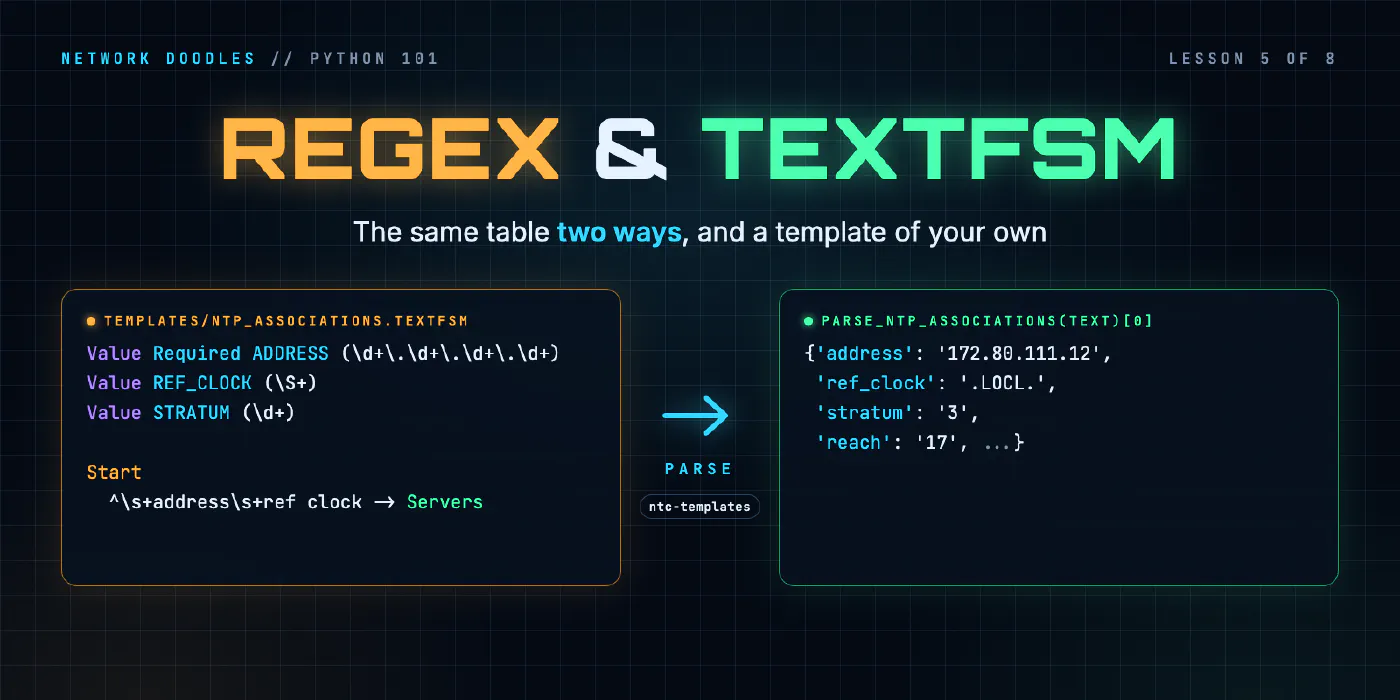
TextFSM is a Python module, written at Google, that parses text with a template: a small file that names the values you want and gives the rules for finding them. FSM stands for finite state machine: the template has states, and the parser is in one state at a time, which lets it treat the header, the body and the footer of an output differently. This is a complete template for two columns of the table above:
Value INTERFACE (\S+)
Value STATUS (up|down|administratively down)

Start
  ^${INTERFACE}\s+\S+\s+(YES|NO)\s+\S+\s+${STATUS}\s -> Record
>>> import textfsm
>>> with open("scratch/brief_two.textfsm") as f:
...     fsm = textfsm.TextFSM(f)
...
>>> fsm.header
['INTERFACE', 'STATUS']
>>> fsm.ParseText(text)
[['GigabitEthernet0', 'up'], ['GigabitEthernet1', 'up'], ['GigabitEthernet2', 'up'], ['GigabitEthernet3', 'up'], ['GigabitEthernet4', 'administratively down'], ['Loopback0', 'up']]
A template has two parts:
- Values, at the top:
Value NAME (regex), one per column. The regex in brackets says what that value looks like. A value can have options before its name:Required(a row without it is dropped),Filldown(keep it for the next rows, for a value printed once above several lines),List(collect several matches into a list) andKey. - States, after a blank line: a name on its own line, then rules, indented, each a regex that starts
with
^.${INTERFACE}inside a rule stands for that value’s regex, and whatever it matches is saved under that name. Every template has aStartstate.
TextFSM reads the output a line at a time and tries the current state’s rules in order. The first rule that
matches wins; a line that matches no rule is ignored. After the -> comes the action: Record saves the
values collected so far as one row and clears them; a state name, like -> Servers, moves to that state; and
-> Error stops the parse with an error, which is how a template says “I’ve seen a line I don’t understand”.
At the end of the text, TextFSM records whatever is left. A literal $ at the end of a rule is written $$,
because a single $ starts a value’s name.
The result is a list of rows in fsm.header’s order. Zip the two together, and lower-case the names, and
you have the same list of dicts the regex gave you.
How does ntc-templates pick a template?
Network to Code’s ntc-templates is a package of TextFSM templates for common commands, community written
and tested, 979 of them in version 9.3.0. You don’t name a template. You say which platform the output
came from and which command made it, and parse_output() finds the template and runs it:
>>> from ntc_templates.parse import parse_output
>>> parse_output(platform="cisco_ios", command="show ip interface brief", data=text)[4]
{'interface': 'GigabitEthernet4', 'ip_address': 'unassigned', 'status': 'administratively down', 'proto': 'down'}
Its field names are its own (proto, not protocol), and it doesn’t turn unassigned into None. The
lab’s parse_brief_ntc() maps those two so its rows equal the regex’s exactly. The platform is cisco_ios
because CapeOS Bolt prints this command the way that platform does; lesson 6 says more about why the lab
uses those names.
The choice is made by a file in the package, templates/index. Each line is a template file, a hostname
pattern, a platform and a command pattern:
cisco_ios_show_ip_interface_brief.textfsm, .*, cisco_ios, sh[[ow]] ip int[[erface]] br[[ief]]
sh[[ow]] means sh, sho or show, so the abbreviations you type on a device work too:
>>> parse_output(platform="cisco_ios", command="sh ip int br", data=text)[4]
{'interface': 'GigabitEthernet4', 'ip_address': 'unassigned', 'status': 'administratively down', 'proto': 'down'}
The index has 139 entries for cisco_ios and 47 for arista_eos. Pulse output goes to the arista_eos
template, which knows its columns, MTU included:
>>> parse_output(platform="arista_eos", command="show ip interface brief", data=pulse)[0]
{'interface': 'Ethernet1', 'ip_address': '10.0.13.2/30', 'status': 'up', 'protocol': 'up', 'mtu': '1500'}
>>> parse_output(platform="cisco_ios", command="show ip interface brief", data=pulse)
[]
The second line is a trap worth remembering: the wrong platform gives an empty list, not an error. And when
there’s no template at all, you get an exception. ntc-templates 9.3.0 has nothing for show ntp associations
on cisco_ios:
>>> parse_output(platform="cisco_ios", command="show ntp associations", data=open("checks/data/ntp-r1.txt").read())
Traceback (most recent call last):
  ...
ntc_templates.parse.ParsingException: Unable to parse command "show ntp associations" on platform cisco_ios - No template found for attributes: "{'Command': 'show ntp associations', 'Platform': 'cisco_ios'}"
That’s the lab’s task 5.2: you write that template yourself.
Regex or TextFSM: which one, when?
| You want | Use | Why |
|---|---|---|
| one value from one output: a version, an uptime, a serial | a regex, re.search | one line of code; a template would be overkill |
| a table from a command ntc-templates covers | parse_output() | someone has already written and tested it, across releases |
| a table from a command it doesn’t cover | your own TextFSM template | states, Required and -> Error handle headers, footers and surprises |
| data from a device that can give it to you structured | its API or JSON output | no parsing at all, and nothing to break |
Regex is the tool you’ll use most often, for small things. TextFSM earns its place on tables, and on outputs
with sections, like show interfaces, where values printed once at the top apply to the lines below. In lesson
6, Netmiko’s use_textfsm=True calls ntc-templates for you, straight after the command runs, so most of the
time parse_output() is one argument away.
What goes wrong
AttributeError: 'NoneType' object has no attribute 'group'. The regex didn’t match, and re.match or
re.search returned None. Print the line you gave it; check whether it needed search rather than match.
findall returns [] on a whole output. ^ or $ in the pattern without re.M.
The header comes back as a row. The pattern is too loose: \S+ matches Interface as happily as
GigabitEthernet0. Make one column strict, like YES|NO, or skip the header with a state.
A two-word value split in half. \S+ stops at the space in administratively down. Spell out the
values the column can have.
An empty list from parse_output(), no error. The platform’s wrong for this output, so a template ran and
nothing matched. Check what the device really is.
ParsingException: ... No template found. ntc-templates has nothing for that platform and command. Check
the index, or write the template.
TextFSMError: State Error raised. A line hit an -> Error rule. The message gives the rule’s line
number in the template and the input line it didn’t expect.
A different answer after an upgrade. A new ntc-templates release can rename a field. That’s why the lab pins 9.3.0.
Try it
Chapter 5 of the lab has you write BRIEF_LINE and parse_brief_regex(), then
parse_brief_ntc() with ntc-templates, and the check makes them agree on outputs they haven’t seen. Then you
write templates/ntp_associations.textfsm, the template ntc-templates doesn’t have, for r1’s
show ntp associations.
What’s next
So far the show output has come from files. Lesson 6 gets it from the devices
themselves, over SSH with Netmiko, with use_textfsm=True doing this lesson’s parsing on the way back.
Related doodles
Capstone: an Inventory to CSV (Python 101, Lesson 8)
Shape a small network tool: an inventory in, one function per step, a CSV out. Two device types into one row, csv.DictWriter, carrying on when a …
Files, Modules and Errors: Saved Configs In, a Report Out (Python 101, Lesson 4)
Read a folder of saved configs with pathlib and with, write a CSV report, split the code into a module and a script, read a traceback from the bottom …
Loops, Conditionals and Functions: Which Interfaces Are Down? (Python 101, Lesson 3)
A for loop runs the same lines for every interface, if decides which ones matter, and a function wraps it up so it can be reused and tested. for over …