Working with Files: Read, Edit, Move and Find (Linux CLI 101, Lesson 2)
Most of what you do on Linux is reading and changing text files: logs, configs, inventories. How to read them with cat, less, head and tail -f, edit them in nano (and get out of vim), copy, move and delete them safely, match names with globs, quote names with spaces, and find files by name, type and age.
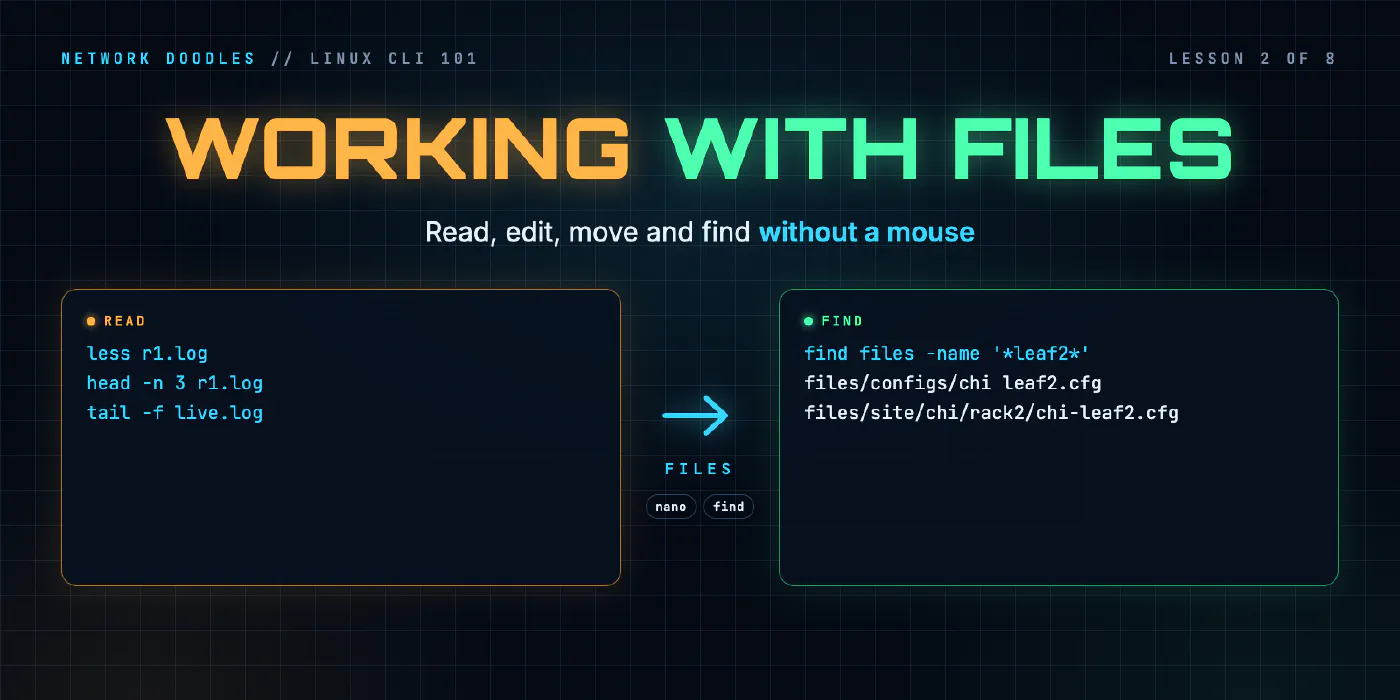
lesson 2 of 8 · course Linux and the command line 101
- 1The shell and the filesystem
- 2Working with files
- 3Pipes, redirection and grep
- 4Users, permissions and sudo
- 5Processes, environment and PATH
- 6SSH and keys
- 7A little Bash scripting
- 8The network from the command line
On Linux, nearly everything you care about is a text file: logs, configs, inventories, scripts. You read a
short file with cat, a long one with less, the start with head, the end with tail, and a log that’s
still growing with tail -f. You change files in an editor (nano is the friendly one), move them with cp,
mv and rm, pick out groups of them with globs like *.cfg, and find them anywhere in the tree with
find.
There’s no mouse and no recycle bin, so the habits matter as much as the commands. This lesson covers what each tool is for, how the shell treats names, and the mistakes that cost people files.
What is the difference between a text file and a binary file?
A text file is bytes that mean characters: letters, digits, spaces and line breaks. You can read it with any tool, change it in any editor, and compare two versions line by line. A binary file is bytes that mean something only to the program that reads it: a compiled program, an image, a packet capture.
The file command looks inside a file and tells you which it is. In the lab:
files/logs/r1.log:           ASCII text
files/configs/nyc-leaf1.cfg: ASCII text
/usr/bin/ls:                 ELF 64-bit LSB pie executable, ARM aarch64, version 1 (SYSV), dynamically linked, ...
The router’s log and a device config are plain text. ls itself is a program in ELF, Linux’s format for
executables. Its first bytes are a marker, not words:
0000000 177 E L F 002 001 001 \0 \0 \0 \0 \0 \0 \0 \0 \0
Linux doesn’t care about extensions. .cfg, .log and .txt are for humans: file reads the content.
That’s why a file with no extension at all, such as /etc/hostname, can still be a perfectly good text file.
Configs, syslog, YAML inventories and scripts are all text, which is why grep, Git and Ansible can work on
them. Print a binary file with cat and the terminal fills with garbage, sometimes enough
to scramble the display. If that happens, type reset and press Enter.
How do you read a file: cat, less, head or tail?
They all print a file. They differ in how much and how you move around it.
| Tool | Shows | Use it for |
|---|---|---|
cat file | the whole file, all at once | short files: a config, a hosts list |
less file | one screen at a time, and you scroll | anything longer than a screen |
head file | the first 10 lines (-n 5 for five) | the start of a log, a CSV’s header row |
tail file | the last 10 lines | the most recent log entries |
tail -f file | the end, then new lines as they’re written | watching a log live |
Here’s head -n 6 on one of the lab’s practice configs, a CapeOS show running-config saved to a file:
Building configuration...

Current configuration : 411 bytes
!
hostname nyc-leaf1
!
And tail -n 3 on ws1’s package log, the newest lines last:
2026-11-11 05:33:18 trigproc ca-certificates:all 20250419+deb13u1 <none>
2026-11-11 05:33:18 status half-configured ca-certificates:all 20250419+deb13u1
2026-11-11 05:33:19 status installed ca-certificates:all 20250419+deb13u1
Log files are written in time order and only ever added to at the end, which is why tail is the first thing
you run on one. wc -l counts lines, so you know whether cat will fit on the screen: the lab’s router log
is 37 files/logs/r1.log, short enough for either tool.
How do you move around in less?
less is a pager: a program that shows text one page at a time. man uses one too, so the keys are worth
learning once.
| Key | Does |
|---|---|
| Space / b | a page forward / back |
| ↓ ↑ | a line at a time |
| g / G | the start / the end of the file |
/text then Enter | search forward for text |
| n / N | the next / previous match |
| F | follow the end, like tail -f (Ctrl+C to stop) |
| q | quit |
Searching is the reason to use less on a log rather than scrolling: /LINK_DOWN jumps straight to the first
interface that went down. The lab has less 590.
What does tail -f do?
tail -f (follow) prints the last lines and then waits. Each time something adds a line to the file, it
appears on your screen. It doesn’t end on its own: press Ctrl+C to stop watching. The
file is untouched.
It’s how you watch a problem happen: run tail -f on a log in one terminal, bounce the interface or rerun the
job in another, and see the lines arrive. When a log file gets replaced rather than added to (log rotation
does this), tail -F, with a capital F, keeps following the new file under the same name.
Which editor should you use, and how do you get out of vim?
You’ll edit text files on machines that have no VS Code. There are three editors worth knowing, and you only need to be good at one.
| Editor | Where you’ll find it | Why |
|---|---|---|
| VS Code | the codespace; code file opens a file in it | the easiest: mouse, tabs, colors, undo |
| nano | almost every Linux machine, including ws1 and srv1 | works in any terminal, and shows its keys on screen |
vim (or vi) | most servers, often as the default editor | powerful, but it has modes, which surprise everyone once |
nano is the one to learn for remote machines. The two bottom lines list its commands, where ^ means
Ctrl: ^O writes the file (Ctrl+S also saves), ^X exits, ^W searches,
^K cuts a line and ^U pastes it. It asks before throwing away changes. The codespace has GNU nano 7.2.
vim starts in normal mode, where letters are commands, not text. That’s why typing into it seems to do
random things. If you land in vim by accident (a Git commit message, crontab -e, a visudo), this gets you
out:
| You want to | Type |
|---|---|
| leave and throw away changes | Esc, then :q! and Enter |
| save and leave | Esc, then :wq and Enter |
Esc first, always: it gets you back to normal mode from wherever you are. In the codespace, vi is
vim.tiny, a small build of vim. The slim ws1 container has no vi at all, only nano.
How do you copy, move, rename and delete files?
Four commands, from GNU coreutils (9.1 in the codespace):
| Command | Does |
|---|---|
cp source target | copies; -r to copy a folder and everything in it |
mv source target | moves, and renames: a rename is a move within the same folder |
rm file | deletes; -r for a folder and everything in it |
mkdir folder | makes a folder; -p makes the parents too, and doesn’t complain if it exists |
There’s no separate rename command. mv r1.bak r1-before.cfg renames, and mv r2.cfg old/ moves the file
into the folder old. The trailing / is a good habit: if old doesn’t exist, mv r2.cfg old quietly
renames the file to old instead, and the slash makes mv fail loudly.
Why is rm dangerous?
There is no recycle bin on the command line. rm removes the name, and the space is free for reuse
straight away. No undo, no Trash folder: in the codespace, ~/.Trash doesn’t exist. rm -r takes a whole
tree with it, without asking.
cp and mv have a quieter version of the same problem: if the target already exists, they overwrite it
without asking. The -i (interactive) option makes them check first:
mv: overwrite 'r10.cfg'?
Answer n and nothing changes. Habits that help:
lsa pattern first, and only thenrmthe same pattern: you see exactly what will go.- Use
rm -iwhen you’re unsure, andcp -iandmv -iwhen the target might exist. - Keep anything you’d miss in Git (the GitOps course): then a mistake is one
git restoreaway.
What are globs, and who expands them?
A glob is a pattern for file names. The two you’ll use most:
| Pattern | Matches | Example |
|---|---|---|
* | any number of characters, including none | *.cfg: every name ending .cfg |
? | exactly one character | r?.cfg: r1.cfg and r2.cfg, but not r10.cfg |
[12] | one of the listed characters | r[12].cfg: r1.cfg and r2.cfg |
The important part: the shell expands the glob, not the command. Before ls runs, Bash looks in the folder,
swaps the pattern for the matching names, and passes those. You can watch it happen with set -x, which makes
Bash print each command after expansion. In a scratch folder:
+ ls 'nyc spine1.cfg' r1.cfg r10.cfg r2.cfg sw1.cfg
+ ls r1.cfg r2.cfg
That’s ls *.cfg and ls r?.cfg after Bash had finished with them. ls never saw a *. It’s why globs work
the same with every command: cp *.cfg backup/, rm *.tmp, mv r*.cfg r1/.
Two consequences:
- A glob that matches nothing is left as it is.
echo *.ymlin a folder with no YAML files prints*.yml, and the command then complains that the file*.ymldoesn’t exist. - Globs don’t match hidden files:
*skips names that start with a dot, the same waylsdoes.
How do you handle file names with spaces?
The shell splits a command line at spaces, so a name with a space in it turns into two arguments. With a file
called nyc spine1.cfg:
ls: cannot access 'nyc': No such file or directory
ls: cannot access 'spine1.cfg': No such file or directory
ls went looking for two files that don’t exist. Either of these keeps the name in one piece:
| Write | How it works |
|---|---|
"nyc spine1.cfg" | quotes: everything inside is one argument |
nyc\ spine1.cfg | a backslash: the next character is taken literally |
Tab completion writes the backslash for you, which is one more reason to let it finish names. Single quotes
work too, and are stricter: inside '...', nothing is special at all. Better still, don’t create names with
spaces: use - or _. Other people’s files will still arrive with them.
How do you find a file when you don’t know where it is?
find walks down a folder tree and prints every path that matches the tests you give it. The shape is always
find where tests. The lab has GNU findutils 4.9.0.
| Test | Matches |
|---|---|
-name '*.cfg' | the name matches the glob (-iname ignores case) |
-type f / -type d | files only / folders only |
-mmin -60 | changed in the last 60 minutes |
-mtime -1 | changed in the last day |
-mtime +1 | changed longer ago (find counts whole days, so +1 means at least two days) |
-empty | empty files and folders |
-size +1M | bigger than a mebibyte |
Several tests together must all match. In the scratch folder, after a few files were moved around:
$ find . -name '*.cfg'
./r1.cfg
./r10.cfg
./sw1.cfg
./nyc spine1.cfg
./old/r2.cfg
./r1-before.cfg
$ find . -type d
.
./old
$ find . -mtime +1
./old/r2.cfg
find looks inside subfolders, which ls *.cfg doesn’t: it found old/r2.cfg, the one file old enough to
match -mtime +1. Unlike ls, its output isn’t sorted. It prints paths in the order it walks the tree.
Notice the quotes around '*.cfg'. Here the glob is for find, not the shell, so it must reach find
unexpanded. Leave them off in a folder that has .cfg files, and the shell expands the pattern first:
find: paths must precede expression: `r1-before.cfg'
find: possible unquoted pattern after predicate `-name'?
Searching by age is the one network engineers reach for most: which configs changed since yesterday? is
find with -name and -mtime -1. Searching inside files, for a line rather than a name, is grep, in
lesson 3.
What I see go wrong
rm with a typo in the pattern. rm * .cfg, with a stray space, is two arguments: *, everything, and
.cfg. ls the pattern first.
A copy that overwrote the original. cp new.cfg old.cfg replaces old.cfg silently. -i, or Git.
mv into a folder that wasn’t there. The file is now called the folder’s name. Write the trailing /.
Stuck in vim. Esc, :q!, Enter.
tail -f that never ends. It’s not broken; it’s waiting for new lines. Ctrl+C.
Unquoted names and patterns. A name with a space splits in two; a find -name pattern without quotes is
expanded by the shell. Quote both.
Editing a config in Windows and copying it over. Windows ends lines with two characters, Linux with one.
file reports with CRLF line terminators, and some tools choke on the extra character. VS Code’s status bar
shows CRLF or LF, and one click changes it.
Try it
Chapter 2 of the lab gives you a real CapeOS syslog from the lab’s router.
You read it with less and its search, pick out the first and last events with head and tail, watch new
lines arrive with tail -f, and write a note in nano. The challenge is a messy folder of config backups,
saved by hand: you sort it into folders, fix a name with a space in it, clear out the empty files, and use
find to count what’s there. The same skills come back in Python 101’s lesson on
files, where a script does the reading.
What’s next
Lesson 3 connects commands together: send one command’s
output into the next, save it to a file, and use grep to answer a question about a log in one line.
Related doodles
Pipes, Redirection and grep: One Question, One Pipeline (Linux CLI 101, Lesson 3)
Every Linux command reads from stdin and writes to stdout and stderr. Redirect those streams to files, pipe one command into the next, and grep, sort …
Processes, Environment Variables and PATH: Finding What Runs (Linux CLI 101, Lesson 5)
Every running program is a process with a number. How to run jobs in the background, find a process that's eating a CPU and stop it, what TERM and …
SSH and Keys: Logging In Without a Password (Linux CLI 101, Lesson 6)
SSH gives you a shell on another machine over an encrypted connection. Host keys, known_hosts, what 'host key changed' means, key pairs and …