Users, Permissions and sudo: Reading ls -l (Linux CLI 101, Lesson 4)
Every Linux file has an owner, a group and nine permission bits. Read them in ls -l, set them with chmod as 644, 755 or 600, see why SSH ignores a key others can read, and know when sudo and apt need root.
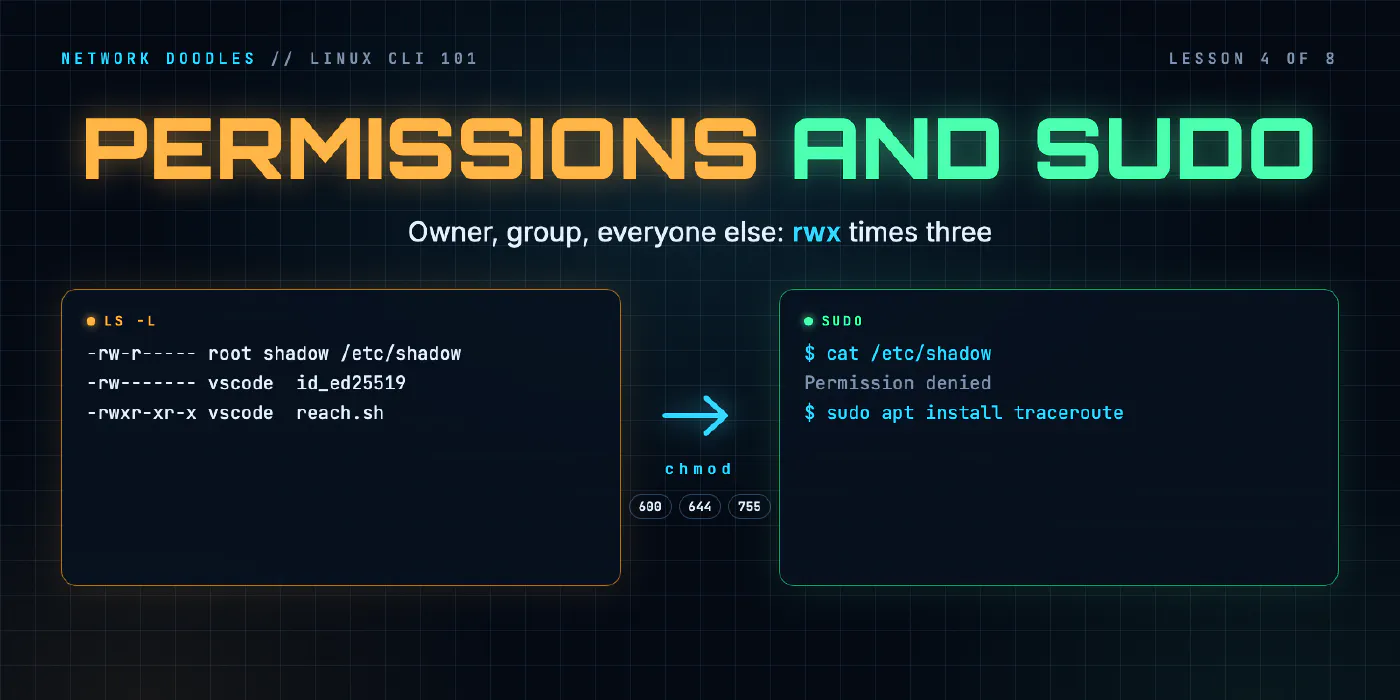
lesson 4 of 8 · course Linux and the command line 101
- 1The shell and the filesystem
- 2Working with files
- 3Pipes, redirection and grep
- 4Users, permissions and sudo
- 5Processes, environment and PATH
- 6SSH and keys
- 7A little Bash scripting
- 8The network from the command line
Every file on a Linux system belongs to one user and one group, and carries nine permission bits: read,
write and execute (rwx), once for the owner, once for the group and once for everyone else. ls -l shows them
as letters, like -rw-r--r--; chmod sets them, usually as three digits: 644 for a normal file, 755 for a
program or folder, 600 for anything private. root is the one user the rules don’t apply to, and sudo is
how you borrow root’s power for one command, which is what installing software with apt needs.
You’ll meet this the first time SSH refuses your key, a script won’t run, or a tool says “Permission denied”.
Each of those is a permission bit, and each takes a few seconds to fix once you can read ls -l.
What are users and groups?
A user is an identity the system checks before it lets anything happen. Every process runs as some user,
and every file is owned by one. To the kernel, a user is a number, the UID (user ID). The name is just a
label for it, kept in /etc/passwd.
A group is a named set of users, with its own number, the GID. Groups let you give several people the same access without listing each of them on every file.
id shows who you are. In the lab’s codespace:
$ id
uid=1000(vscode) gid=1000(vscode) groups=1000(vscode),104(docker),997(clab_admins),998(pipx),999(nvm),1001(ssh)
You’re user vscode, number 1000. Your primary group (the one new files get) is also called vscode, and
you’re in a few more. Being in the docker group is what lets you run docker without asking for root.
On ws1, the lab’s workstation, the same command says something different:
$ id
uid=1000(netops) gid=1000(netops) groups=1000(netops)
Same number, different name. Users are local to each machine: UID 1000 on the codespace and UID 1000 on ws1 have nothing to do with each other. That matters later, when you copy files between machines with SSH (lesson 6).
Each line of /etc/passwd is one user, with fields split by colons:
root:x:0:0:root:/root:/bin/bash
vscode:x:1000:1000::/home/vscode:/bin/bash
Name, a placeholder x (the password hash lives in /etc/shadow, which only root can read), UID, GID, a
comment, the home folder and the login shell.
How do I read ls -l?
ls -l prints one line per file. The first ten characters are the type and the permissions:
$ ls -l
-rw-r--r-- 1 vscode vscode  3 Nov 11 05:56 notes.txt
drwxr-xr-x 2 vscode vscode 40 Nov 11 05:56 reports
Take -rw-r--r-- apart:
| Characters | - | rw- | r-- | r-- |
|---|---|---|---|---|
| Meaning | type | user (the owner) | group | other (everyone else) |
| Here | a regular file | read, write | read | read |
The type is - for a file and d for a directory. Then three sets of three, always in the order r, w, x.
A letter means the permission is there; a dash means it isn’t.
After the permissions come a link count (ignore it for now), the owner (vscode), the group
(vscode), the size in bytes, the time it was last changed, and the name.
When you try to open a file, Linux checks one set: the user set if you own it, otherwise the group set if
you’re in its group, otherwise the other set. It doesn’t add them up. If you own a file with ---r--r--, you
can’t read it, even though everyone else can.
What do r, w and x mean on files and on folders?
The same three letters mean slightly different things on a directory:
| Bit | On a file | On a directory |
|---|---|---|
r read | read its contents | list the names in it |
w write | change its contents | create, delete and rename files in it |
x execute | run it as a program | go into it, and reach the files inside |
Two consequences catch people out. Deleting a file needs w on the folder, not on the file. And a folder
without x is a locked door, even if you can read the names through the keyhole. Here’s a folder set to 600
(read and write, no execute) by its own owner:
$ ls -l locked
ls: cannot access 'locked/f': Permission denied
total 0
-????????? ? ? ? ?            ? f
$ cat locked/f
cat: locked/f: Permission denied
ls could read the name f, because of r, but not look at the file, because there’s no x. That’s why
folders are almost always 755 or 700, never 644 or 600.
What do 644, 755 and 600 mean?
Each permission is worth a number: r = 4, w = 2, x = 1. Add them up for each set and you get one digit per set, user then group then other.
| Mode | Letters | Who can do what | Use it for |
|---|---|---|---|
644 | rw-r--r-- | you read and write; everyone reads | ordinary files, configs, notes |
755 | rwxr-xr-x | you do anything; everyone reads and runs | scripts, programs, folders |
600 | rw------- | only you, read and write | private keys, files with passwords |
700 | rwx------ | only you, everything | private folders, like ~/.ssh |
666 | rw-rw-rw- | everyone reads and writes | almost never what you want |
777 | rwxrwxrwx | everyone does anything | never: it’s the “I gave up” mode |
So 6 is 4 + 2, read and write; 5 is 4 + 1, read and execute; 7 is all three.
chmod (change mode) sets them. You can give the number, which sets all nine bits at once, or letters, which
change only what you name: u, g, o for user, group and other (a for all), then + or -, then the bits.
$ chmod 600 notes.txt; ls -l notes.txt
-rw------- 1 vscode vscode 3 Nov 11 05:56 notes.txt
$ chmod g+r,o+r notes.txt; ls -l notes.txt
-rw-r--r-- 1 vscode vscode 3 Nov 11 05:56 notes.txt
$ chmod o+w notes.txt; ls -l notes.txt
-rw-r--rw- 1 vscode vscode 3 Nov 11 05:56 notes.txt
The last one is the kind of thing you want to spot: anyone can change that file. stat -c "%a %A %n" shows
the number and the letters side by side, if you’d rather not do the arithmetic:
$ stat -c "%a %A %U %G %n" notes.txt hello.sh
646 -rw-r--rw- vscode vscode notes.txt
755 -rwxr-xr-x vscode vscode hello.sh
Use numbers for the whole result, letters for “add execute, leave the rest alone” (chmod +x). The coreutils manual on file
permissions has every form.
Why do new files start as 644?
Because of the umask, a mask of bits your shell takes away from every new file and folder. In the codespace
it’s 0022, which removes write for group and other. A new file starts from 666 and ends up 644; a new
folder starts from 777 and ends up 755. New files never get x, which is why you chmod +x a script you’ve
just written.
Why won’t my script run?
Because running a file is a permission, and a new file doesn’t have it:
$ ls -l hello.sh
-rw-r--r-- 1 vscode vscode 33 Nov 11 05:56 hello.sh
$ ./hello.sh
bash: line 1: ./hello.sh: Permission denied
$ bash hello.sh
it runs
$ chmod 755 hello.sh; ./hello.sh
it runs
bash hello.sh works without x because there you’re running bash, which has x, and it only reads the
script. ./hello.sh asks the system to run the file itself, which needs x. The shell’s exit code for “found
it, can’t run it” is 126, which you’ll see again in lesson 7.
What’s the difference between owner and permission?
The owner decides who the user set applies to. The permissions decide what each set may do. You change
permissions with chmod, and only on files you own. You change the owner with chown, and only root can do
that, even for your own files:
$ chown root notes.txt
chown: changing ownership of 'notes.txt': Operation not permitted
When a file has the right owner and the wrong access, fix the mode. When it has the wrong owner (usually root,
after a careless sudo), that’s a job for sudo chown.
Why does SSH refuse a key file others can read?
An SSH private key is the secret half of a key pair: whoever has the file can log in as you wherever the
matching public key is accepted. Lesson 6 covers the pair. The
permission part is simple: if anyone but you can read the file, SSH assumes it may already be copied, and it
refuses to use it. Here’s a freshly made key set to 644:
Permissions 0644 for 'demo_key' are too open.
It is required that your private key files are NOT accessible by others.
This private key will be ignored.
Load key "demo_key": bad permissions
Above those lines, SSH prints a box of @ signs with a warning in capitals. The ssh manual
says it plainly: a private key file should be readable by you and “not accessible by others”, and ssh
simply ignores one that is.
The fix is chmod 600 on the key. Nothing else. Don’t copy the key, don’t make a new one, don’t change the
owner. SSH applies the same idea to the folder around it: in the codespace, ~/.ssh is drwx------ (700), and
on ws1 authorized_keys is -rw------- (600). SSH (OpenSSH 9.2 in the codespace, 10.0 on ws1) is strict on
purpose, because automation tools like Ansible and Git log in with these same files and nobody is watching.
What is root, and what does sudo do?
root is the user with UID 0, and the kernel skips permission checks for it. root can read /etc/shadow,
change any file’s owner and write anywhere. That’s why you don’t work as root day to day: one typo has no
safety net.
sudo (“superuser do”) runs one command as root, if the system’s rules in /etc/sudoers say you may. The
rules file is itself readable only by root:
$ ls -l /etc/sudoers
-r--r----- 1 root root 1714 Apr 11  2026 /etc/sudoers
$ cat /etc/sudoers
cat: /etc/sudoers: Permission denied
$ whoami
vscode
$ sudo whoami
root
sudo -l lists what you’re allowed. In the codespace the answer is everything, with no password:
User vscode may run the following commands on codespace:
    (root) NOPASSWD: ALL
That’s a lab convenience. On a normal server, sudo asks for your password (not root’s) and logs every
command. The codespace has sudo 1.9.13; the sudo
manual covers the options.
Why doesn’t sudo work with a redirect?
Because the redirect isn’t part of the command. From lesson 3:
the shell sets up > before the command starts, and your shell is running as you.
$ sudo echo hi > /etc/lesson4-demo.txt
bash: line 1: /etc/lesson4-demo.txt: Permission denied
echo ran as root. The file was opened by your shell, as vscode, and /etc doesn’t let vscode write. The
error even says bash:, not echo:. The usual fix is echo hi | sudo tee /etc/file, so that the program
writing the file is the one running as root.
Why does installing software need root?
On Debian and Ubuntu, software comes in packages, and apt is the tool that fetches them from Debian’s
servers (the repositories) and installs them, along with anything they depend on. Installing means writing
to folders like /usr/bin and to the package database in /var/lib/dpkg, and those belong to root:
$ ls -ld /usr/bin
drwxr-xr-x 1 root root 4096 Nov 11 05:52 /usr/bin
$ ls -l /var/lib/dpkg/lock-frontend
-rw-r----- 1 root root 0 Nov  7 10:44 /var/lib/dpkg/lock-frontend
Anyone can read /usr/bin and run what’s in it (r-x for other). Only root can add to it, because a program
there runs for every user. Hence sudo apt.
Two steps, always in this order. sudo apt update downloads the current list of packages and versions; it
installs nothing. sudo apt install <name> then installs a package from that list. Skip the update on a fresh
machine and apt may not find the package at all, because its list is empty or out of date. The apt
manual has the rest.
Asking what’s installed needs no root:
$ apt list --installed 2>/dev/null | grep -E "^(grep|openssh-client|sudo)/"
grep/oldstable,now 3.8-5 arm64 [installed,automatic]
openssh-client/oldstable,now 1:9.2p1-2+deb12u10 arm64 [installed]
sudo/oldstable,now 1.9.13p3-1+deb12u4 arm64 [installed]
oldstable is Debian’s name for the previous release: the codespace runs Debian 12, while the lab’s ws1 and
srv1 run Debian 13. automatic means apt installed it as something another package needed.
What I see go wrong
chmod 777 to make an error go away. Now every user can change the file or replace the script. Find the
bit that was missing and set only that.
chmod -R on a whole tree. chmod -R 644 on a folder removes x from every directory inside it, and
they all become locked doors. Files and folders need different modes; set them separately.
sudo for everything. Running an editor, git or pip with sudo in your home folder leaves files
owned by root there. Later, as yourself, you get “Permission denied” on your own project. ls -l shows
root in the owner column; sudo chown puts it back. Use sudo for system changes, not to silence errors.
A key that’s 644 after a copy. Keys copied from a Windows share, unzipped, or pulled from a repo often
arrive with loose permissions. SSH then ignores them, and asks for a password instead if the server allows one. chmod 600.
Fixing the file when the folder is the problem. “Permission denied” on a file you can plainly read? Check
every folder on the path with ls -ld. Without x on one of them, you can’t reach it.
Try it
Chapter 4 of the lab starts with reading ls -l on a file only root may
read, then has you make a private file and a runnable script with the right modes, and install a missing tool
with apt. The challenge breaks three files on purpose: a private key SSH won’t use, a script that won’t run,
and a notes file anyone can change. You fix all three without changing who owns them, and the checker logs in
to ws1 with the key to prove it.
If the checker or make break is new to you, Meet the lab explains both. Permissions come
up again in every lab that uses SSH, including Python 101 and Ansible.
What’s next
Lesson 5 is about the programs themselves once they’re
running: processes and their IDs, stopping one that won’t stop, environment variables, and PATH, the list
of folders the shell searches when you type a command’s name.
Related doodles
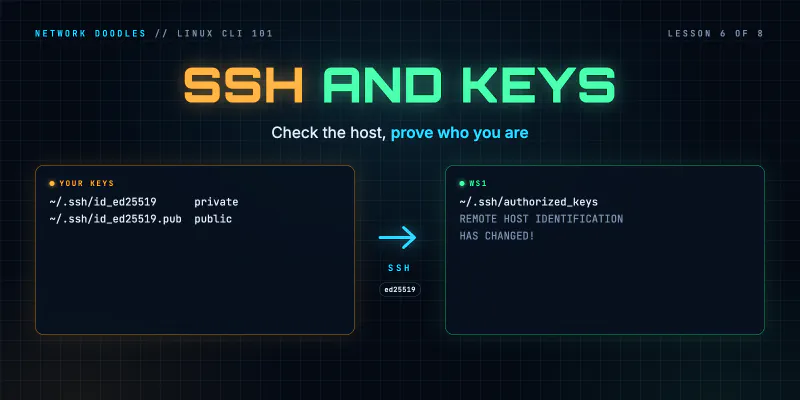
SSH and Keys: Logging In Without a Password (Linux CLI 101, Lesson 6)
SSH gives you a shell on another machine over an encrypted connection. Host keys, known_hosts, what 'host key changed' means, key pairs and …
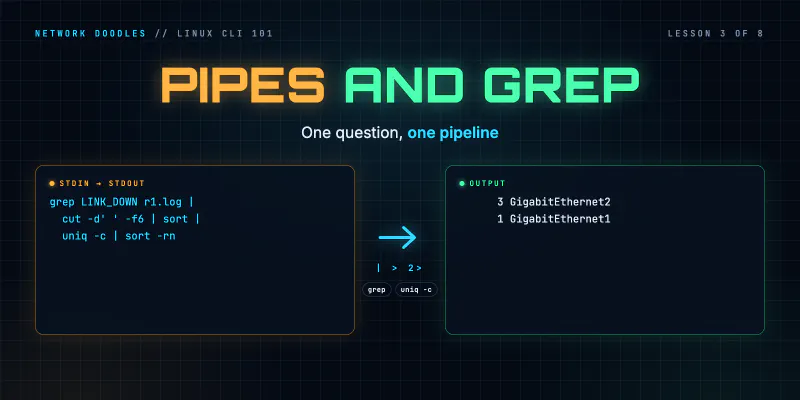
Pipes, Redirection and grep: One Question, One Pipeline (Linux CLI 101, Lesson 3)
Every Linux command reads from stdin and writes to stdout and stderr. Redirect those streams to files, pipe one command into the next, and grep, sort …
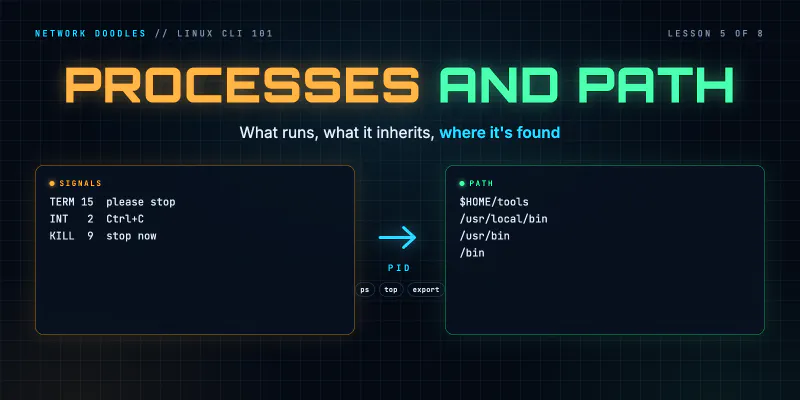
Processes, Environment Variables and PATH: Finding What Runs (Linux CLI 101, Lesson 5)
Every running program is a process with a number. How to run jobs in the background, find a process that's eating a CPU and stop it, what TERM and …