The Shell and the Filesystem: Reading Any Path (Linux CLI 101, Lesson 1)
A shell reads the commands you type and runs them. Linux keeps every file in one tree that starts at /. The prompt, commands and their options, absolute and relative paths, ~, . and .., hidden files, where things live, and how to get help without leaving the terminal.
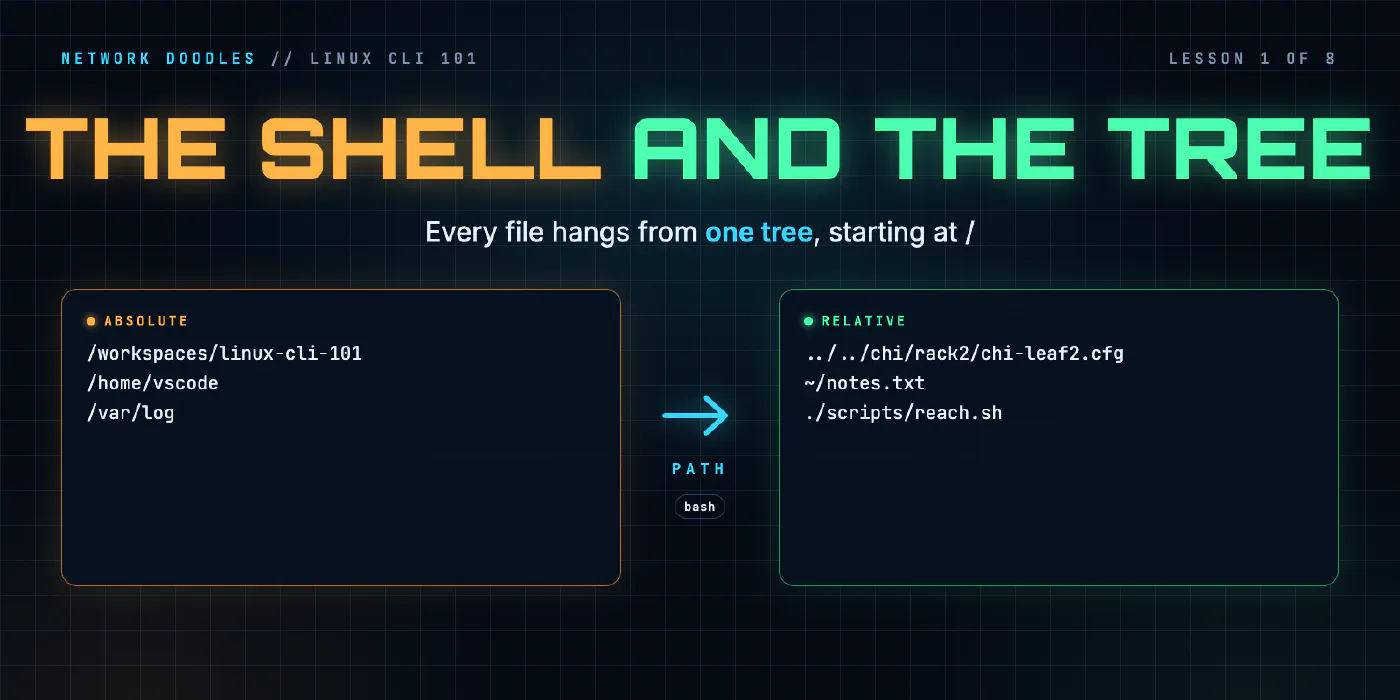
lesson 1 of 8 · course Linux and the command line 101
- 1The shell and the filesystem
- 2Working with files
- 3Pipes, redirection and grep
- 4Users, permissions and sudo
- 5Processes, environment and PATH
- 6SSH and keys
- 7A little Bash scripting
- 8The network from the command line
A shell is the program that reads what you type at the prompt, works out which command you mean, and runs
it. On almost every Linux system, including this course’s lab, the shell is Bash. Every file Linux can see
sits in one tree that starts at /, the root. A path is the route through that tree to one file:
absolute if it starts at /, relative if it starts from the folder you’re in now.
Once you can read a path and know where it points, the rest of the command line gets much easier. This lesson covers the shell, the prompt, how a command line is put together, the tree and its paths, hidden files, where Linux keeps things, and how to get help.
Why does a network engineer need Linux?
Because you’re already using it, even if the box says something else. The lab’s router, r1, runs CapeOS, and it looks like a router from its own CLI:
CapeOS Software (CO-BOLT), Version 0.11.2, LAB USE ONLY
CapeOS is open-source lab software. Not for production use.
Ask the container underneath the same question Linux answers, and it’s Debian:
PRETTY_NAME="Debian GNU/Linux 12 (bookworm)"
That’s the pattern across the industry. Nokia’s SR Linux, which other labs on this site use, runs on a standard Linux kernel. Many network operating systems run on a Linux kernel and give you a way to a Linux shell underneath. The automation tools are Linux-first too: Ansible’s control node, Python scripts, containerlab, Git servers and the CI runners that test your changes all run there. The codespace you’ll use for every lab on this site is a Linux container, Debian 12 in this one.
You don’t need to become a Linux administrator. You need to be at home in a shell: find a file, read it, run a tool, and understand the error when it doesn’t work.
What is the difference between a terminal and a shell?
They’re two programs that people often mix up.
| What it is | In the lab | |
|---|---|---|
| Terminal | the window: it draws text, takes your keystrokes and passes them on | the Terminal panel in VS Code |
| Shell | the program behind the window that reads each line and runs it | Bash |
The terminal doesn’t understand commands. It hands what you type to the shell, and shows what the shell and the commands print back. You can swap one without the other: the same Bash runs in VS Code’s panel, in a Mac’s Terminal app, or over SSH from anywhere.
Bash is the Bourne Again SHell, from the GNU project. It’s a newer take on the original Unix shell by Stephen Bourne, which is where the name comes from. The versions in the lab:
| Machine | OS | bash --version |
|---|---|---|
| the codespace | Debian 12 (bookworm) | 5.2.15 |
| ws1, srv1 | Debian 13 (trixie) | 5.2.37 |
Everything in this course works the same on both. The GNU Bash manual is the primary source when you want the full story.
What is the prompt telling you?
The prompt is what the shell prints when it’s ready for your next command. It’s not decoration: it tells you who you are, where you are, and sometimes how the last command went.
In the codespace, the prompt is set up by the dev container and looks like this, with your GitHub name in front:
@yourname ➜ /workspaces/linux-cli-101 (main) $
On ws1, a plain Debian machine, it’s the Debian default:
netops@ws1:~$
| Part | Means |
|---|---|
@yourname or netops | the user you are |
@ws1 | the machine you’re on: worth checking before you type anything risky |
/workspaces/linux-cli-101 or ~ | the folder you’re in now |
(main) | the Git branch, when the folder is a Git repository |
➜ | in the codespace, it turns red when the last command failed |
$ | an ordinary user; # means you’re root, the all-powerful user (lesson 4) |
When you’re logged in to three machines in three tabs, reading the prompt is how you avoid running a command on the wrong one.
How is a command line put together?
Every line you type has the same shape: a command, then options that change how it behaves, then arguments that say what it works on. Spaces separate them.
ls  -l  files/configs
│   │   └── argument: what to work on
│   └────── option: how to do it (long listing)
└────────── command: what to run
Here’s that line in the lab, with real output:
total 20
-rw-r--r-- 1 vscode vscode  63 Nov 11 05:44 README.txt
-rw-r--r-- 1 vscode vscode 384 Nov 11 05:44 chi leaf2.cfg
-rw-r--r-- 1 vscode vscode 411 Nov 11 05:44 chi-leaf1.cfg
-rw-r--r-- 1 vscode vscode 411 Nov 11 05:44 nyc-leaf1.cfg
-rw-r--r-- 1 vscode vscode 384 Nov 11 05:44 nyc-leaf2.cfg
Options come in two spellings: short, one dash and one letter (-l), and long, two dashes and a word
(--all). Short ones can be bundled: ls -la is ls -l -a. Most GNU tools accept both, and --help lists
them side by side.
Two things trip beginners up:
- Linux is case-sensitive.
ls -landls -Lare different options, andREADME.txtandreadme.txtare different files. - A space ends an argument.
chi leaf2.cfgabove is one file with a space in its name. Typed bare, the shell sees two arguments. Lesson 2 covers quoting.
Not every command is a program on disk. Some are built into the shell itself. type tells you which:
cd is a shell builtin
pwd is a shell builtin
cd has to be a builtin: a separate program could change its own folder, but not the shell’s.
What is the Linux filesystem tree?
Windows gives each disk a letter: C:\, D:\. Linux doesn’t. There is one tree, and everything hangs off
its root, written /. Extra disks, USB sticks and network shares are attached somewhere inside that tree, at a
folder called a mount point, so they look like any other folder.
The top of the tree in the codespace (ls /) looks like this:
bin   boot  dev  etc  home  lib  media  mnt  opt  proc  root
run   sbin  srv  sys  tmp   usr  var  workspaces
workspaces is the one Codespaces adds; the rest you’ll find on any Debian machine. The layout is set out in
the Filesystem Hierarchy Standard. A handful of
folders matter from day one:
| Folder | What’s in it | You’ll go there to |
|---|---|---|
/etc | system configuration, as text files | read how a service is set up (/etc/hostname, /etc/os-release) |
/var/log | log files | find out what a service did, and when |
/home | one folder per user (/home/vscode, /home/netops) | keep your own files |
/tmp | temporary files, often emptied at reboot | try things out |
/usr/bin | most of the programs you run (/usr/bin/ls) | see where a command lives |
/root | the root user’s home, not inside /home | rarely: it’s root’s |
Linux keeps its configuration in plain text, and it’s one of the reasons it automates so well: a tool that can read and write a text file can configure the system.
What is the difference between an absolute and a relative path?
An absolute path starts with / and spells out the route from the root. It means the same thing wherever
you are: /workspaces/linux-cli-101/files/site/nyc/README.txt is one file, from any folder, on any shell in
that machine.
A relative path doesn’t start with /. The shell starts it from your working directory, the folder
you’re in now (pwd prints it). files/configs only means something because the terminal is sitting in
/workspaces/linux-cli-101.
Three short names help you move around:
| Name | Means |
|---|---|
. | this folder |
.. | the folder above this one, its parent |
~ | your home folder: /home/vscode in the codespace, /home/netops on ws1 |
Every folder has a . and a .. inside it, which is how relative paths can climb. Here’s one from the lab’s
practice tree, with realpath, which turns any path into the absolute path it points to:
$ pwd
/workspaces/linux-cli-101/files/site/nyc/rack2
$ realpath ../README.txt
/workspaces/linux-cli-101/files/site/nyc/README.txt
Read it one piece at a time: start in rack2; .. climbs one level to nyc; README.txt is the file in
there. Each .. is one folder up. Chain them (../../) to climb further, then name folders to go back down.
~ is a little different. It isn’t a folder name: the shell replaces it with your home folder’s absolute
path before the command sees it. cd on its own does the same thing and takes you home.
Which kind should you use?
| Use | When |
|---|---|
| absolute | in scripts, config files, cron jobs: anything that might run from a different folder |
| relative | typing at the prompt, inside a project you’re already in |
Most “file not found” errors from a script that works at the prompt are a relative path started from the wrong folder.
What are hidden files?
A file or folder whose name starts with a dot is hidden: ls leaves it out unless you add -a. It isn’t
secret or protected. It’s a convention for files you don’t need to see every day, mostly configuration.
New users on ws1 get their starting files from /etc/skel, and ls alone shows nothing there. ls -a shows
what’s really in it:
.
..
.bash_logout
.bashrc
.profile
.bashrc sets up your shell each time it starts (lesson 5).
Your home folder also holds .ssh, where SSH keeps your keys (lesson 6).
Hidden files are where a lot of tools keep their settings, so when something behaves oddly, ls -a is worth a
look.
How do you get help without leaving the terminal?
Two places, and you’ll use both.
--help is built into most commands. It prints a short summary: the usage line and every option, one line
each. It’s quick, and it describes the exact version you have.
Usage: mkdir [OPTION]... DIRECTORY...
Create the DIRECTORY(ies), if they do not already exist.
Read the usage line as a pattern: [ ] means optional, ... means you can give more than one, and capitals
are the things you fill in.
man opens the manual page: the full reference, with descriptions and often examples. It opens in a
pager, so you scroll with the arrow keys or Space, search with /, and leave with q.
LS(1)                            User Commands                           LS(1)

NAME
       ls - list directory contents

SYNOPSIS
       ls [OPTION]... [FILE]...
The (1) is the manual’s section. Section 1 is commands, section 5 is file formats, section 8 is admin
commands. When a name lives in more than one, ask for the section: man 5 passwd is the file, man passwd
the command. The same pages are online at man7.org, which is handy when
you’re reading on another screen.
Not every machine has man. The codespace does. ws1 is a slim container and doesn’t (bash: man: command not found), so --help is your friend there. Builtins such as cd have no manual page of their own: help cd asks
Bash for its summary.
What I see go wrong
Working in the wrong folder. A command says No such file or directory for a file you can see in the
explorer. The file exists; you’re just not where the relative path starts. Check the prompt, or pwd.
Working on the wrong machine. Three tabs, three machines, one prompt that looks a lot like another. Read
user@host before anything that changes state.
Reading ~ as a folder name. ~ works because the shell expands it. Inside quotes ("~/notes.txt") it
doesn’t, and some programs reading paths from a config file won’t expand it either. Use the absolute path
there.
Typing a Windows path. Linux uses /, not \, and there’s no drive letter. A backslash means something
else to the shell entirely.
Missing a hidden file. The config you’re looking for “isn’t there” because its name starts with a dot.
ls -a.
Wrong case. Files/ and files/ are different folders. Tab completion avoids this: let the shell finish
names for you.
Try it
Chapter 1 of the lab starts in the codespace’s terminal. You find your home folder, the lab’s folder and the operating system’s name, go looking for a hidden file, and then read a small practice tree of site and rack folders until you can reach any file in it by an absolute path and by the shortest relative one. If the terminal itself is new, Meet the lab shows the editor, the terminal and the checker first.
What’s next
Now you can find a file, lesson 2 is about what to do with it: reading logs and configs, editing in nano, copying, moving and deleting, and finding files by name and age.
Related doodles
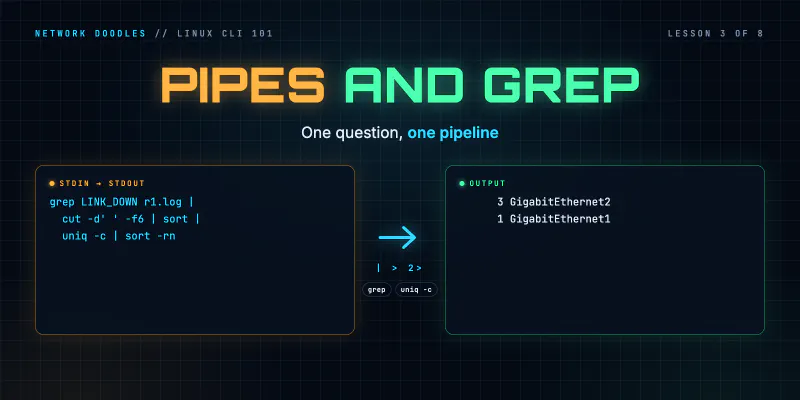
Pipes, Redirection and grep: One Question, One Pipeline (Linux CLI 101, Lesson 3)
Every Linux command reads from stdin and writes to stdout and stderr. Redirect those streams to files, pipe one command into the next, and grep, sort …
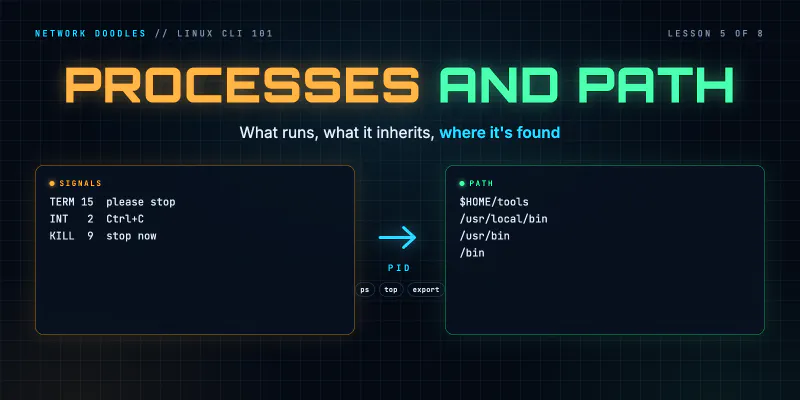
Processes, Environment Variables and PATH: Finding What Runs (Linux CLI 101, Lesson 5)
Every running program is a process with a number. How to run jobs in the background, find a process that's eating a CPU and stop it, what TERM and …
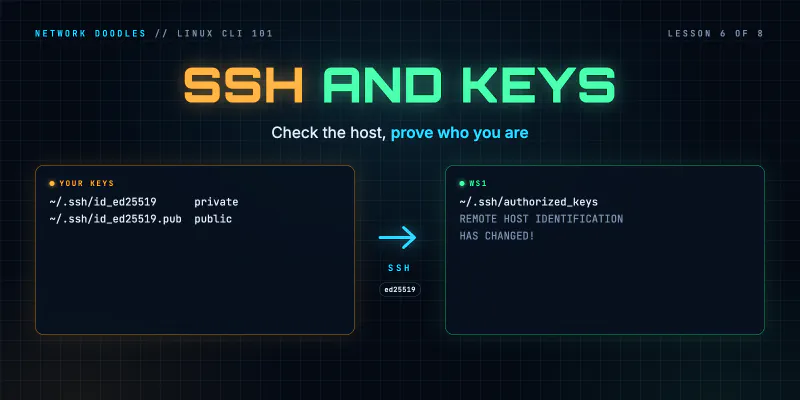
SSH and Keys: Logging In Without a Password (Linux CLI 101, Lesson 6)
SSH gives you a shell on another machine over an encrypted connection. Host keys, known_hosts, what 'host key changed' means, key pairs and …