Processes, Environment Variables and PATH: Finding What Runs (Linux CLI 101, Lesson 5)
Every running program is a process with a number. How to run jobs in the background, find a process that’s eating a CPU and stop it, what TERM and KILL really do, how environment variables pass from parent to child, and how the shell uses PATH to find a command.
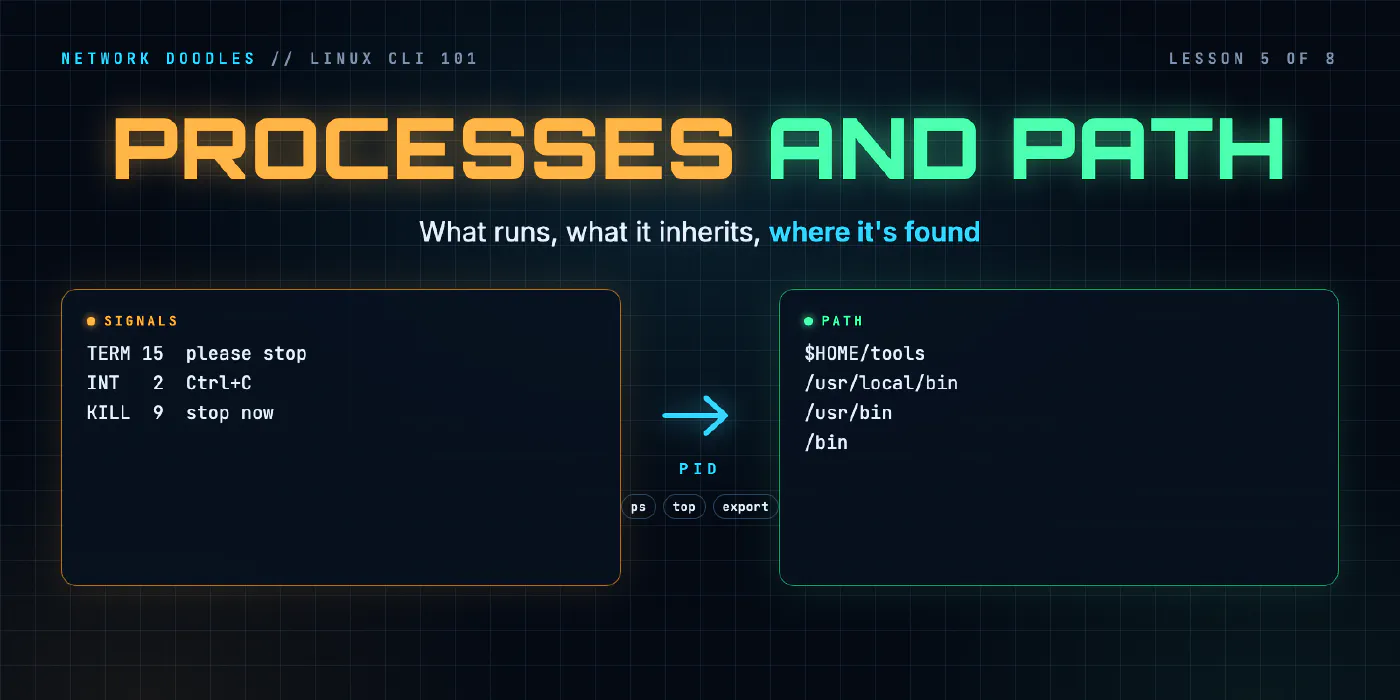
lesson 5 of 8 · course Linux and the command line 101
- 1The shell and the filesystem
- 2Working with files
- 3Pipes, redirection and grep
- 4Users, permissions and sudo
- 5Processes, environment and PATH
- 6SSH and keys
- 7A little Bash scripting
- 8The network from the command line
A process is a program that’s running, and Linux gives every one a number, its PID (process ID). You
find processes with ps and top, and you stop one by sending it a signal: kill sends TERM, a polite
request to stop, and kill -9 sends KILL, which no process can refuse. Each process also carries a set of
environment variables, named values it hands down to the processes it starts. One of them, PATH, is the
list of folders the shell searches when you type a command name.
Those three ideas explain why a script can’t see a variable you just set, why a tool you installed says
“command not found”, and what to do when something is eating a CPU. They come back in every later course:
Ansible reads settings from environment variables, and Python’s venv works by changing PATH.
What is a process, and what’s a PID?
When you type sleep 300 and press Enter, the shell asks the Linux kernel to start the sleep
program. The kernel loads it, gives it a PID and some memory, and lets it run. That running copy is a
process. Run sleep twice and you have two processes of one program, each with its own PID.
Every process except the very first has a parent: the process that started it. Your shell is the parent
of every command you type. Here’s the codespace’s shell and a sleep it started in the background, as ps
shows them:
  PID  PPID STAT     ELAPSED COMMAND
35250     0 Ss         00:00 bash
35256 35250 S          00:00 sleep
| Column | Means |
|---|---|
PID | this process’s number |
PPID | its parent’s PID: sleep’s parent, 35250, is the bash above it (that bash shows 0 because it was started from outside the container) |
STAT | its state: R running, S sleeping (waiting for something), T stopped, Z a zombie (finished, but its parent hasn’t collected it yet) |
ELAPSED | how long it has been running |
COMMAND | the program |
Your PIDs will be different, and a PID is reused after its process ends, so look one up just before you act on it.
What’s the difference between foreground and background?
A command runs in the foreground by default: the shell waits for it to finish before it gives you the
prompt back. That’s what you want for ls. It’s not what you want for a capture or a long copy that takes ten
minutes.
Put & at the end of a command and it runs in the background: the shell starts it, prints its job number
and PID, and gives you the prompt straight away. The shell’s own list of what it started is called its
jobs:
$ sleep 300 &
[1] 36465
$ jobs -l
[1]+ 36465 Running                 sleep 300 &
[1] is the job number, which only your shell knows. 36465 is the PID, which the whole system knows.
kill %1 stops a job by its number; kill 36465 does the same by PID.
| You want to | Do this |
|---|---|
| start something in the background | end the command with & |
| pause the foreground command | Ctrl+Z |
| list this shell’s jobs | jobs (jobs -l adds PIDs) |
| bring a job back to the foreground | fg %1 |
| let a paused job carry on in the background | bg %1 |
| stop the foreground command | Ctrl+C |
Ctrl+Z and Ctrl+C look alike and do very different things.
Ctrl+Z pauses: the process is still there, holding its memory, doing nothing, until
you fg or bg it. Ctrl+C asks it to stop. Background jobs belong to the shell that started them. Close that terminal and they normally go with it.
How do I find the process that’s eating a CPU?
Ask for every process, sorted by CPU use. ps -e lists every process on the system, not just yours, and
--sort=-pcpu puts the busiest first:
$ ps -eo pid,user,pcpu,pmem,comm --sort=-pcpu | head -6
  PID USER     %CPU %MEM COMMAND
33433 vscode    200  0.0 ps
   26 root     28.5  1.4 dockerd
33423 vscode    2.6  0.0 bash
26452 root      2.5  0.3 capeosd
   37 root      2.0  0.7 containerd
%CPU is per core, so it can pass 100 on a machine with several cores. And ps averages it over the
process’s lifetime, so a command that has only just started (ps itself, here) can look wildly busy. For
“what’s busy right now”, use top.
top is a live view that refreshes every few seconds and sorts by current CPU use. Here’s one screen of it from
the codespace, taken with top -b -n1 (batch mode, one round, so it can be shown here):
top - 05:56:30 up 3 days,  7:01,  0 user,  load average: 12.30, 7.90, 7.51
Tasks:  46 total,   1 running,  24 sleeping,   0 stopped,  21 zombie
%Cpu(s):  5.1 us, 43.6 sy,  0.0 ni, 48.7 id,  2.6 wa,  0.0 hi,  0.0 si,  0.0 st
MiB Mem :   7837.1 total,    242.9 free,   1890.9 used,   5971.7 buff/cache

  PID USER      PR  NI    VIRT    RES    SHR S  %CPU  %MEM     TIME+ COMMAND
26452 root      20   0   35820  28584   9012 S   6.2   0.4   0:07.17 capeosd
33471 vscode    20   0   12064   4784   2736 R   6.2   0.1   0:00.03 top
The load average is how many processes, on average, were running or waiting to run over the last 1, 5
and 15 minutes. Compare it with the number of cores (nproc): a load of 2 on a 2-core codespace means it’s
fully busy. In the list, PID, %CPU, TIME+ (total CPU time used) and COMMAND are the columns that find a
runaway.
What does kill actually do? TERM vs KILL
kill doesn’t kill. It sends a signal: a small numbered message from the kernel to a process. The
process can have a handler for most signals, a piece of its own code that runs when the signal arrives,
or it can ignore them. The signal(7) manual page lists
them all. These are the ones you’ll use:
| Signal | Number | Sent by | What it asks | Can it be ignored? |
|---|---|---|---|---|
TERM | 15 | kill PID (the default) | please finish up and exit | yes |
INT | 2 | Ctrl+C | interrupt what you’re doing | yes |
HUP | 1 | the terminal closing | your terminal has gone | yes |
KILL | 9 | kill -9 PID or kill -KILL PID | nothing: the kernel ends it | no |
STOP | 19 | kill -STOP PID | pause, like Ctrl+Z | no |
Send TERM first, because it lets a program clean up: close its files, remove its lock file, write its last log line. KILL gives it no chance. The kernel just removes it, mid-write if that’s where it was. signal(7) puts it plainly: SIGKILL and SIGSTOP “cannot be caught, blocked, or ignored”.
Here’s a small script, written for this lesson, that spins one CPU and ignores TERM. It’s started in the background, sent TERM, then sent KILL:
$ ps -o pid,stat,pcpu,etime,cmd -p 33680
  PID STAT %CPU     ELAPSED CMD
33680 R     100       00:02 bash /tmp/lesson5-stubborn
$ kill 33680
$ ps -o pid,stat,pcpu,cmd -p 33680
  PID STAT %CPU CMD
33680 R    99.0 bash /tmp/lesson5-stubborn
$ kill -9 33680
bash: line 6: 33680 Killed                  /tmp/lesson5-stubborn
$ ps -p 33680 -o pid,cmd
  PID CMD
After TERM it’s still there, still at 99% CPU. kill printed nothing, because sending the signal worked; the
process simply chose to ignore it. After KILL it’s gone, and ps finds nothing. The shell reported its exit
status as 137, which is 128 plus 9: “ended by signal 9”. You’ll meet exit codes properly in
lesson 7.
The habit is: TERM, wait a few seconds, check, and only then KILL. Reaching for kill -9 first is how you
end up with half-written files and lock files that stop the program starting again.
What is an environment variable?
An environment variable is a named value, like HOME=/home/vscode, that a process carries with it and
that programs can read. env lists the ones your shell has; echo "$HOME" prints one. They tell a program something without changing its code or files.
The shell also has plain shell variables, which stay inside the shell. The difference is the whole point
of export:
$ GREETING=hi
$ bash -c 'echo child sees: [$GREETING]'
child sees: []
$ export GREETING
$ bash -c 'echo child sees: [$GREETING]'
child sees: [hi]
GREETING=hi set a shell variable. The second bash, a child process started by the first, couldn’t see
it. After export, the shell put it in its environment, and every child it starts from then on gets a copy.
Three rules follow, and they explain most “but I set it!” problems:
- Children get a copy, not a link. A child that changes the variable changes only its own copy. Nothing a script does to its environment comes back to the shell that ran it.
- It goes down, never sideways. A variable exported in one terminal tab doesn’t exist in another. Each terminal runs its own shell.
- It lasts as long as the shell. Close the terminal and it’s gone. To have it in every new terminal, put
the
exportline in a startup file (below).
Why do secrets go in environment variables?
Because a file you commit to Git is shared with everyone who can read the repository, forever, history included. A password in an environment variable lives only in the memory of the processes that need it. That’s why Python 101 has Netmiko read credentials from the environment, and why Don’t hardcode passwords and Ansible 101’s lesson on secrets take the same line. They aren’t a vault (any process running as you can read them), but they’re far better than a password in code.
How does the shell find a command? PATH
When you type ssh, the shell needs a file to run. It doesn’t search the whole disk. It reads the
environment variable PATH, a list of folders separated by colons, and looks in each in turn. The
first folder holding an executable file called ssh wins. Here’s the codespace’s PATH, one folder per line:
$ echo "$PATH" | tr ":" "\n"
/home/vscode/.venvs/lab/bin
/home/vscode/.local/bin
/home/vscode/.atuin/bin
/usr/local/python/current/bin
/usr/local/py-utils/bin
/usr/local/jupyter
/usr/local/share/nvm/current/bin
/usr/local/bin
/usr/local/sbin
/usr/local/bin
/usr/sbin
/usr/bin
/sbin
/bin
Order matters. The lab’s Python venv is first, which is how activating a venv works: it puts its own bin
folder in front, so its python is found before the system’s. (Python 101 picks this up.)
To ask which file a name resolves to, use type, which knows everything the shell knows, or which, which
only searches PATH:
$ type cd ls ssh
cd is a shell builtin
ls is /usr/bin/ls
ssh is /usr/bin/ssh
cd isn’t a file at all. It’s a builtin, part of Bash itself, because changing the shell’s folder is
something only the shell can do to itself.
A command that isn’t in any PATH folder isn’t found, even if the file is sitting right there. Here’s a
two-line script, hello5, in a folder that’s not on PATH, then the same name after that folder is added
to the front:
$ hello5
bash: line 1: hello5: command not found
$ PATH="/tmp/lesson5-tools:$PATH"
$ hello5
hello from my own command
$ type hello5
hello5 is hashed (/tmp/lesson5-tools/hello5)
“Hashed” means Bash remembered where it found it. A name with a / in it, such as ./hello5, skips the
PATH search entirely: that’s why you type ./ to run a script in the current folder.
Exit code 127 is the shell’s code for “command not found”. When a script fails with 127, check PATH first.
Where do settings for every new terminal go? ~/.bashrc
A variable you set or a PATH you change lasts until the terminal closes. To have it in every new terminal,
add the line to a startup file that Bash reads when it starts:
| File | Read by | Use it for |
|---|---|---|
~/.bashrc | every new interactive shell, such as each terminal tab in the codespace | export lines, PATH changes, aliases |
~/.profile | login shells, such as when you log in over SSH | settings for a login; on Debian it also reads ~/.bashrc when Bash is the shell |
The GNU Bash manual’s section on startup files
has the exact rules. For this course, ~/.bashrc is the one you edit.
Debian’s default ~/.profile already adds ~/bin to PATH for login shells, if that folder exists. The lab
uses a different folder, ~/tools, so you add it yourself and see how it works.
Editing ~/.bashrc changes nothing in the terminal you already have open: it’s only read when a shell starts.
Open a new terminal, or run source ~/.bashrc to read it into the current one. The checker always tests a new terminal.
What I see go wrong
“I set it, but the script can’t see it.” It’s a shell variable, not exported. Use export NAME=value.
“I exported it, but the other tab can’t see it.” Each terminal is its own shell. Put it in ~/.bashrc
and open a new terminal.
“I added it to ~/.bashrc and nothing changed.” The file is read when a shell starts. Open a new terminal.
“command not found”, but the file is right there. Its folder isn’t on PATH, or the file isn’t
executable (chmod +x, from lesson 4). type name tells
you what the shell would run.
The wrong version runs. Two folders on PATH have a file of that name, and the earlier one wins.
type -a name lists every match, in order.
A broken PATH. PATH=/home/me/tools without :$PATH replaces the whole list, and suddenly ls is “not
found”. Always add to it: PATH="$HOME/tools:$PATH". If you’ve done it in a terminal, close that terminal.
If you’ve done it in ~/.bashrc, fix the file with its full path, such as /usr/bin/nano ~/.bashrc.
kill -9 first. It works, and it skips the program’s clean-up. Send TERM, wait, check with ps, then
KILL.
Try it
Chapter 5 of the lab has you start and pause jobs, read ps and top, set
a variable that every new terminal and the programs it starts can see, then find a runaway process that
doesn’t stop when it’s asked, and make a command of your own runnable from any folder.
What’s next
So far everything has run on one machine. Lesson 6 is about getting a shell on another one with SSH: host keys, key pairs, and logging in by a short name with no password.
Related doodles
Pipes, Redirection and grep: One Question, One Pipeline (Linux CLI 101, Lesson 3)
Every Linux command reads from stdin and writes to stdout and stderr. Redirect those streams to files, pipe one command into the next, and grep, sort …
SSH and Keys: Logging In Without a Password (Linux CLI 101, Lesson 6)
SSH gives you a shell on another machine over an encrypted connection. Host keys, known_hosts, what 'host key changed' means, key pairs and …
The Network from the Command Line: ip route get, ss, curl -v, dig and tcpdump (Linux CLI 101, Lesson 8)
When a service answers on the server but not from anywhere else, five commands find out why: which way the packet goes, what's listening on which …