Pipes, Redirection and grep: One Question, One Pipeline (Linux CLI 101, Lesson 3)
Every Linux command reads from stdin and writes to stdout and stderr. Redirect those streams to files, pipe one command into the next, and grep, sort and uniq answer real questions about a router’s log in one line.
lesson 3 of 8 · course Linux and the command line 101
- 1The shell and the filesystem
- 2Working with files
- 3Pipes, redirection and grep
- 4Users, permissions and sudo
- 5Processes, environment and PATH
- 6SSH and keys
- 7A little Bash scripting
- 8The network from the command line
Every command you run in a Linux shell has three streams: one coming in (stdin), one for its results
(stdout) and one for its complaints (stderr). Redirection, with >, >> and 2>, sends a stream to a
file. A pipe, |, connects one command’s stdout to the next command’s stdin. Put small tools in a row like that,
grep to pick lines, sort to order them, uniq -c to count them, and one line answers a question that would
take you ten minutes with a mouse.
This is the lesson where the shell stops being a place to look at files and starts being a tool for questions
about them. The examples all run on r1.log, a real syslog captured from the lab’s CapeOS router.
What are stdin, stdout and stderr?
A stream is a flow of text into or out of a program. Every program starts with three of them already open:
| Stream | Number | Default | Used for |
|---|---|---|---|
| stdin (standard input) | 0 | your keyboard | what the program reads |
| stdout (standard output) | 1 | your terminal | the results |
| stderr (standard error) | 2 | your terminal | errors and warnings |
stdout and stderr both land on your screen, so they look like one thing. They aren’t. Ask ls for one file
that exists and one that doesn’t:
$ ls nosuch r1.log
ls: cannot access 'nosuch': No such file or directory
r1.log
The first line went to stderr, the second to stdout. The split is deliberate: it means you can save or process the results without the error messages mixed in, and still see the errors on screen.
The numbers matter because redirection uses them. 2> means “stream 2”, which is stderr.
How do I send output to a file?
With redirection: you tell the shell, before the command even starts, to point one of its streams somewhere else. The program doesn’t know or care. It writes to stdout as usual, and the shell has already connected stdout to a file.
| You write | What happens |
|---|---|
cmd > file | stdout goes to file. The file is created, or emptied first if it exists |
cmd >> file | stdout is added to the end of file |
cmd 2> file | stderr goes to file |
cmd > file 2>&1 | stdout goes to file, then stderr goes wherever stdout goes: both in one file |
cmd 2> /dev/null | stderr is thrown away. /dev/null is a special file that swallows everything |
cmd < file | stdin comes from file instead of the keyboard |
Here’s the same ls with stdout sent to a file. The error still reaches the screen, because only stream 1 moved:
$ ls nosuch r1.log > out.txt
ls: cannot access 'nosuch': No such file or directory
$ cat out.txt
r1.log
And with stderr sent to a file instead, the screen stays quiet and the complaint is in err.txt:
$ ls nosuch 2> err.txt
$ cat err.txt
ls: cannot access 'nosuch': No such file or directory
2>&1 reads as “send stream 2 to wherever stream 1 is going right now”. Order matters: the shell processes
redirections left to right, so > file 2>&1 puts both in the file, and 2>&1 > file doesn’t (stderr was
pointed at the terminal before stdout moved). The Bash manual’s redirection
section has the full list.
A real use for 2> /dev/null: apt, Debian’s package tool, warns on stderr whenever its output goes anywhere
but a terminal:
$ apt list --installed 2>&1 | head -3
WARNING: apt does not have a stable CLI interface. Use with caution in scripts.

Listing...
Add 2>/dev/null and the warning is gone, while the list itself is untouched.
What does a pipe do?
A pipe, written |, connects the stdout of the command on its left to the stdin of the command on its right.
No file in between: the text flows straight from one program into the next. A row of commands joined by pipes is
a pipeline.
$ wc -l < r1.log
37
wc -l counts lines. The log has 37. Now count only the successful logins: grep picks the matching lines and
hands them on.
$ grep LOGIN_OK r1.log
*Nov 11 05:42:32.023: %CAPEOS-5-LOGIN_OK: Login by admin from 172.80.102.1 port 60330
*Nov 11 05:43:18.153: %CAPEOS-5-LOGIN_OK: Login by admin from 172.80.102.1 port 41092
*Nov 11 05:44:03.607: %CAPEOS-5-LOGIN_OK: Login by admin from 172.80.102.1 port 35784
$ grep LOGIN_OK r1.log | wc -l
3
This is the Unix idea in one line: small tools that each do one job, joined together. grep doesn’t count,
wc doesn’t search, and neither needs to.
Only stdout goes through a pipe. stderr still goes to the screen, which is usually what you want:
$ ls nosuch r1.log | wc -l
ls: cannot access 'nosuch': No such file or directory
1
$ ls nosuch r1.log 2>&1 | wc -l
2
The first wc counted one line, because the error never entered the pipe. With 2>&1 it counted both.
Which small tools are worth knowing first?
Five do most of the work in log pipelines. All of them read stdin when you don’t give them a file name, which is what makes them pipe-friendly. They’re part of GNU coreutils (version 9.1 in the codespace).
| Tool | Job | Options you’ll use |
|---|---|---|
wc | counts lines, words, bytes | -l lines only |
sort | puts lines in order | -n by number, -r reverse, -u drop repeats |
uniq | collapses adjacent repeated lines | -c prefix each with its count |
cut | keeps some columns of each line | -d the separator, -f which fields |
tee | copies stdin to a file and to stdout | -a append |
cut treats each line as fields split by one character. Split the log’s lines on : and the fourth field is the
message type:
$ cut -d: -f4 r1.log | head -3
 %CAPEOS-5-RESTART
 %CAPEOS-5-LOGIN_OK
 %CAPEOS-3-LINK_DOWN
(The time stamp holds two colons of its own, which is why the type is field 4, not 2. Counting fields is the
fiddly part of cut.)
tee is for when you want to keep a copy of what’s flowing through a pipe and keep going. Here it saves the list
of message types to a file while wc counts them:
$ grep -o "%CAPEOS-[0-9]-[A-Z_]*" r1.log | sort -u | tee types.txt | wc -l
8
How does sort | uniq -c count things?
This is the pattern you’ll use more than any other: pull out the thing you want to count, sort it so that equal
lines sit together, count each run with uniq -c, then sort by the count, biggest first. Here’s every message
type in the router’s log, counted:
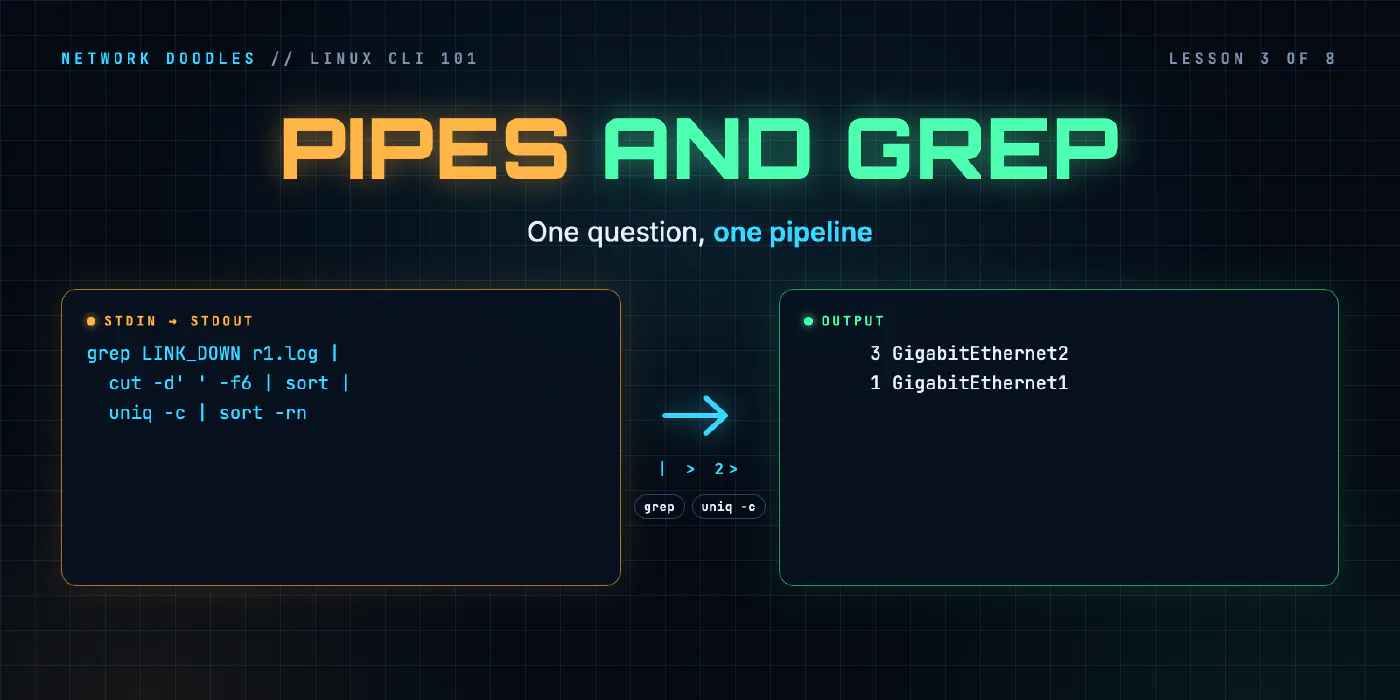
$ grep -o "%CAPEOS-[0-9]-[A-Z_]*" r1.log | sort | uniq -c | sort -rn
      9 %CAPEOS-5-CONFIG_DONE
      8 %CAPEOS-4-LOGIN_FAILED
      4 %CAPEOS-5-PROTO_UP
      4 %CAPEOS-5-PROTO_DOWN
      4 %CAPEOS-3-LINK_UP
      4 %CAPEOS-3-LINK_DOWN
      3 %CAPEOS-5-LOGIN_OK
      1 %CAPEOS-5-RESTART
Read it left to right:
grep -oprints only the part of each line that matched, not the whole line: one message type per line.sortputs identical types next to each other.uniq -cturns each run of identical lines into one line with a count in front.sort -rnsorts by that number (-n), largest first (-r).
In one line you’ve learned something useful: eight failed logins in a log of 37 lines, more than the successful
ones. That’s the kind of thing worth a second look on a real router. (The four ties come out Z to A because -r
reverses the whole comparison, including the alphabetical tie-break.)
Why the first sort? Because uniq only compares each line with the one before it. Skip the sort and it counts
runs, not totals:
$ grep -o "%CAPEOS-[0-9]-[A-Z_]*" r1.log | uniq -c | head -5
      1 %CAPEOS-5-RESTART
      1 %CAPEOS-5-LOGIN_OK
      1 %CAPEOS-3-LINK_DOWN
      1 %CAPEOS-5-PROTO_DOWN
      2 %CAPEOS-5-CONFIG_DONE
No error, just wrong numbers. That’s the worst kind of mistake, so make sort | uniq -c a single habit in your
head.
What can grep do besides find a word?
grep prints the lines that match a pattern. The codespace has GNU grep 3.8, and the GNU grep
manual covers everything. These options cover most days:
| Option | Means | Example on the lab’s files |
|---|---|---|
-i | ignore case | grep -i "login by" matches Login by |
-v | invert: lines that don’t match | grep -v CAPEOS-5 drops the severity 5 noise |
-c | print a count of matching lines | grep -c LOGIN_OK r1.log prints 3 |
-r | search every file under a folder | grep -r hostname files/configs |
-o | print only the matching part | used in the counting pipeline above |
-E | extended regular expressions | grep -E "LINK_(UP|DOWN)" |
-n | add line numbers | handy when you’ll open the file next |
Case matters by default. The log says Login by, so this finds nothing:
$ grep "login by" r1.log | wc -l
0
$ grep -i "login by" r1.log | wc -l
3
-r turns grep into a search across a whole tree, and it prefixes each match with the file it came from.
On the lab’s saved configs:
$ grep -r hostname files/configs
files/configs/nyc-leaf1.cfg:hostname nyc-leaf1
files/configs/nyc-leaf2.cfg:hostname nyc-leaf2
files/configs/chi leaf2.cfg:hostname chi-leaf2
files/configs/chi-leaf1.cfg:hostname chi-leaf1
That’s “which file has the config for chi-leaf2?”, answered without opening any of them. Notice chi leaf2.cfg,
with a space in its name, and a hostname that doesn’t match it. Real backup folders look like this.
-c counts lines, not matches. A line that matches twice counts once. Usually that’s what you want with
logs, where one event is one line.
What is a regular expression?
A regular expression, or regex, is a pattern that describes text instead of spelling it out. Every
grep pattern is one: LOGIN_OK is a regex that happens to match only itself. The power is in the characters
that mean something else.
| Pattern | Matches |
|---|---|
. | any one character |
[0-9] | one digit; [A-Z_] one capital letter or underscore |
* | the thing before it, any number of times, including none |
^ and $ | the start and the end of the line |
(UP|DOWN) | UP or DOWN (with -E) |
+, ? | one or more; zero or one (with -E) |
So %CAPEOS-[0-9]-[A-Z_]* reads: a percent sign, CAPEOS-, one digit, a dash, then any run of capitals and
underscores. That’s every message type, without listing them. And ^\*Nov 11 05:43 would match only lines whose
time stamp starts in that minute.
Two flavours matter. Plain grep uses basic regular expressions, where +, ?, | and () are ordinary
characters unless you put a backslash before them. grep -E uses extended ones, where they’re special
straight away. Use -E whenever your pattern has an “or” in it; it’s easier to read:
$ grep -cE "LINK_(UP|DOWN)" r1.log
8
Quote your patterns. Without the quotes, the shell sees *, | and ( first and tries to use them itself,
as a glob, a pipe and a syntax error.
This is a first taste. Python uses the same ideas, with more power (named groups, pulling fields out instead of
just matching lines), and Python 101’s regex lesson picks up from
here. The difference in practice: grep answers “which lines?”, and Python answers “which values, as data?”.
What I see go wrong
> when you meant >>. > empties the file before the command runs. Running a report twice with > keeps
only the second run. That’s fine for a report you regenerate, and a disaster for a log you meant to add to.
Redirecting a file onto itself. sort r1.log > r1.log doesn’t sort the file, it destroys it. The shell
empties r1.log to set up the redirect before sort starts reading, so sort reads an empty file:
$ sort copy.log > copy.log
$ wc -l copy.log
0 copy.log
Write to a new file, then rename it.
uniq without sort. Wrong counts, no warning. See above.
Errors that vanish into a pipe, or don’t. If a pipeline’s output looks short, check whether the first
command wrote errors to the screen that you scrolled past. If you’re saving to a file and the file has errors
in it, you used 2>&1 and maybe didn’t mean to.
grep -c on several files. It prints one count per file (r1.log:3), not a total. For a total, pipe
grep into wc -l.
Unquoted patterns. grep LINK_(UP|DOWN) r1.log without quotes is a shell syntax error, not a grep one.
If an error message mentions bash: and not grep:, the shell got there first.
Case. The log says LOGIN_FAILED and Login failed. A pattern in the wrong case matches nothing, quietly.
-i when in doubt.
Try it
Chapter 3 of the lab gives you the same r1.log and a list of questions about
it: lines about one interface, lines that aren’t config changes, link-down events per interface, the severe
lines saved to a report with nothing on the screen. Then a challenge: who keeps failing to log in to the router,
and how often. Each answer is a one-line pipeline, and the checker runs yours on logs it has never seen, so it
has to answer the question, not just match the numbers in this file.
Lesson 2 covered reading these files with less, head and
tail -f; tail -f r1.log | grep LINK is the live version of everything above. If this was your first
time in a terminal, the Meet the lab page explains the checker and make.
What’s next
Lesson 4 is about who may read and change a file: users,
groups, the rwx columns in ls -l, and why some files, like a private SSH key, must be readable by you alone.
Related doodles
Processes, Environment Variables and PATH: Finding What Runs (Linux CLI 101, Lesson 5)
Every running program is a process with a number. How to run jobs in the background, find a process that's eating a CPU and stop it, what TERM and …
The Network from the Command Line: ip route get, ss, curl -v, dig and tcpdump (Linux CLI 101, Lesson 8)
When a service answers on the server but not from anywhere else, five commands find out why: which way the packet goes, what's listening on which …
The Shell and the Filesystem: Reading Any Path (Linux CLI 101, Lesson 1)
A shell reads the commands you type and runs them. Linux keeps every file in one tree that starts at /. The prompt, commands and their options, …