The Network from the Command Line: ip route get, ss, curl -v, dig and tcpdump (Linux CLI 101, Lesson 8)
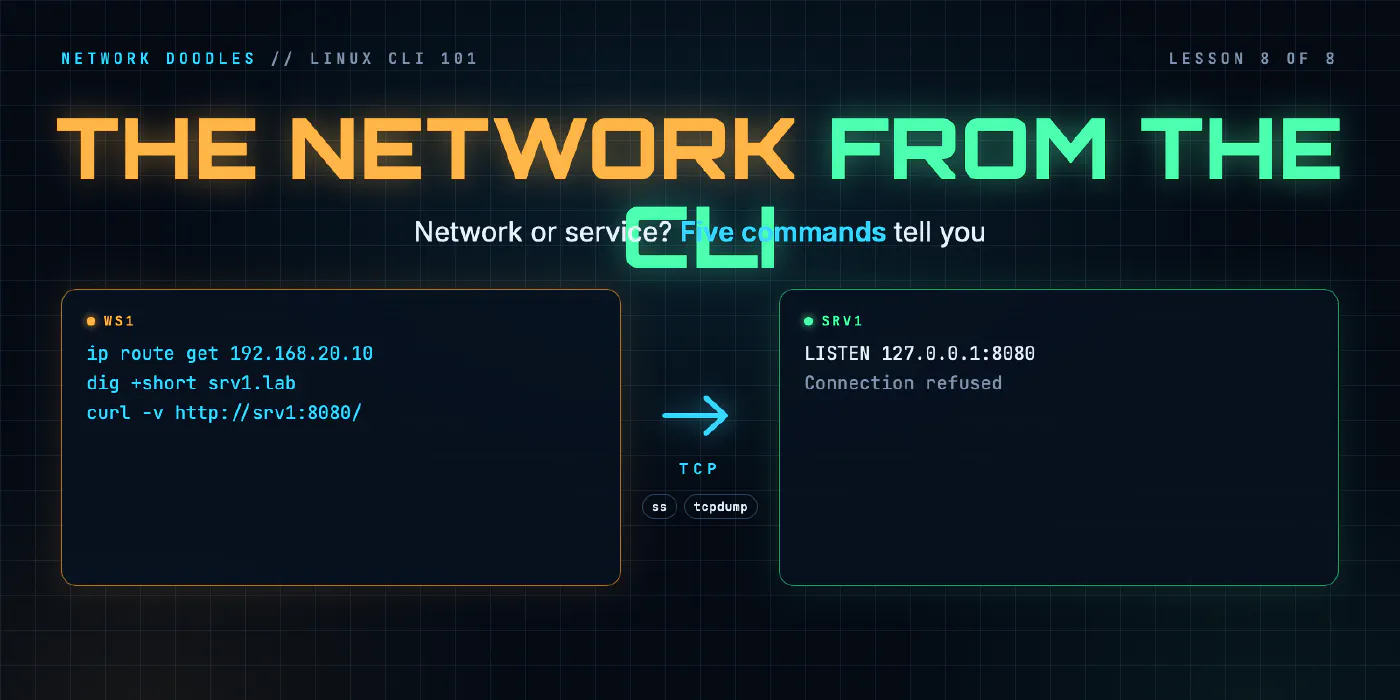
When a service answers on the server but not from anywhere else, five commands find out why: which way the packet goes, what’s listening on which address, what curl saw from DNS to HTTP, and what’s on the wire.
lesson 8 of 8 · course Linux and the command line 101
- 1The shell and the filesystem
- 2Working with files
- 3Pipes, redirection and grep
- 4Users, permissions and sudo
- 5Processes, environment and PATH
- 6SSH and keys
- 7A little Bash scripting
- 8The network from the command line
When a web service works on the server but not from another host, work through the path in order. Does the
name resolve to the right address (dig)? Which way will the packet go (ip route get)? Is anything on the
way answering (ping, traceroute)? Is the service listening on an address the other host can reach
(ss -tlnp)? Then let curl -v show where the conversation stops, and tcpdump show what’s on the wire.
A common answer to “works locally, not remotely” is the listening address. A program listening on
127.0.0.1 only accepts connections from its own machine. 0.0.0.0 means every address the machine has.
You met most of these commands in the Networking 101 lab. This lesson is
about the options and output that matter when you’re troubleshooting. Everything below ran on the lab’s ws1
(Debian 13: iproute2 6.15.0, iputils 20240905, traceroute 2.1.6, curl 8.14.1, DiG 9.20.30, tcpdump 4.99.5),
except the TLS example, which ran in the codespace.
How do I see a host’s addresses at a glance?
ip addr prints a screenful per interface. -br (brief) prints one line each, and -4 drops IPv6:
$ ip -br -4 addr
lo               UNKNOWN        127.0.0.1/8
eth0@if76        UP             172.80.102.11/24
eth1@if80        UP             192.168.10.10/24
Name, state, addresses. On ws1, eth0 is the lab’s management network (the way the codespace reaches it), and
eth1 is its cable to the router, r1. lo is the loopback interface: a virtual interface that only ever
talks to the machine itself, with 127.0.0.1 on it. The @if76 part says the interface is one end of a
virtual cable whose other end is interface 76 somewhere else, which is how containers are wired. Without
-4, ip -br addr also lists half a dozen tunnel interfaces that are DOWN and can be ignored.
Which way will a packet go?
ip route shows the routing table. ip route get answers the question you actually have: for this one
address, which route wins? It asks the kernel’s routing decision directly and sends nothing
(ip-route(8)).
$ ip route get 172.80.102.12
172.80.102.12 dev eth0 src 172.80.102.11 uid 1000
    cache
$ ip route get 8.8.8.8
8.8.8.8 via 192.168.10.1 dev eth1 src 192.168.10.10 uid 1000
    cache
| Word | Means |
|---|---|
via 192.168.10.1 | send it to this router. No via means the address is on a directly connected network |
dev eth1 | out of this interface |
src 192.168.10.10 | with this as the source address |
uid 1000 | the user who asked. Ignore it |
The first address is on the management network, so it goes straight out of eth0. The second matches only the
default route, so it goes to r1. On a host with several interfaces, this is the quickest way to find out
whether replies leave by the interface you expect. The src field matters too: it’s the address the far end
sees, and the address its firewall rules have to allow.
Which ping and traceroute options matter?
Linux ping runs until you press Ctrl-C. In anything you’ll script or paste, give it a count:
| Option | Does |
|---|---|
ping -c 3 | send 3 and stop, with a summary |
ping -W 1 | wait at most 1 second for each reply |
ping -n | numbers only, no reverse lookups |
traceroute -n | numbers only, no names |
traceroute -q 1 | one probe per hop instead of three |
traceroute -w 1 | wait at most 1 second per probe |
traceroute -m 5 | give up after 5 hops instead of 30 |
$ ping -c 3 -n srv1.lab
PING srv1.lab (192.168.20.10) 56(84) bytes of data.
64 bytes from 192.168.20.10: icmp_seq=1 ttl=63 time=0.074 ms
64 bytes from 192.168.20.10: icmp_seq=2 ttl=63 time=0.252 ms
64 bytes from 192.168.20.10: icmp_seq=3 ttl=63 time=0.075 ms

--- srv1.lab ping statistics ---
3 packets transmitted, 3 received, 0% packet loss, time 2041ms
rtt min/avg/max/mdev = 0.074/0.133/0.252/0.083 ms
ttl=63 is a free hop count. Linux sends with a TTL of 64, and each router on the way takes one off, so 63
means one router in between. The exit code also matters here: ping exits 0 if replies came back and 1 if none
did, which is what lesson 7’s scripts read.
Without -n, traceroute looks up a name for every hop. In the lab that’s quick, because srv1’s DNS server
knows the names. On a real network, a reverse lookup that nobody answers can add seconds per hop:
$ traceroute 192.168.20.10
traceroute to 192.168.20.10 (192.168.20.10), 30 hops max, 60 byte packets
 1  r1.lab (192.168.10.1)  1.073 ms  0.124 ms  0.057 ms
 2  srv1.lab (192.168.20.10)  4.811 ms  0.082 ms  0.045 ms
Stars don’t always mean a fault. Running traceroute -n straight after that one gave this:
traceroute to 192.168.20.10 (192.168.20.10), 30 hops max, 60 byte packets
 1  192.168.10.1  0.799 ms  0.035 ms  0.031 ms
 2  * * *
 3  * * *
 4  * * *
 5  * * *
 6  * * *
 7  * 192.168.20.10  0.461 ms  0.107 ms
Same two-hop path, a few seconds later, run again: back to two lines. Linux traceroute sends many probes at
once, and Linux limits how fast it sends the ICMP errors traceroute depends on (net.ipv4.icmp_ratelimit,
1000 ms on these hosts), so a burst of probes can get only some answers. If a count looks wrong, wait a moment
and run it again with -q 1.
What does a listening address mean?
A server program listens on a port: it asks the operating system for every new connection to that port. It
also picks which of the machine’s addresses to listen on. ss -tlnp shows both: TCP (t), listening
(l), numbers (n), and the process (p) that owns each socket
(ss(8)).
To see it, I started Python’s built-in web server on ws1, listening only on loopback:
python3 -m http.server --bind 127.0.0.1 9999.
$ ss -tln
State  Recv-Q Send-Q Local Address:Port  Peer Address:Port
LISTEN 0      5          127.0.0.1:9999       0.0.0.0:*
LISTEN 0      128          0.0.0.0:22         0.0.0.0:*
LISTEN 0      4096      127.0.0.11:35819      0.0.0.0:*
LISTEN 0      128             [::]:22            [::]:*
Two programs, two very different promises. SSH on 0.0.0.0:22 takes connections on any IPv4 address ws1 has
([::]:22 is the same for IPv6). The web server on 127.0.0.1:9999 takes them only on loopback. The
127.0.0.11 line is Docker’s own DNS helper inside the container.
-p adds the process, but only for sockets you own, unless you use sudo:
$ sudo ss -tlnp "sport = :9999"
State  Recv-Q Send-Q Local Address:Port Peer Address:PortProcess
LISTEN 0      5          127.0.0.1:9999      0.0.0.0:*    users:(("python3",pid=467,fd=3))
The "sport = :9999" part is a filter: only sockets whose source port is 9999. Then I tried the same server
listening three ways, and connected to it by both addresses:
| Listening on | curl 127.0.0.1:9999 | curl 192.168.10.10:9999 |
|---|---|---|
127.0.0.1 | the page | refused |
192.168.10.10 | refused | the page |
0.0.0.0 | the page | the page |
127.0.0.1 is the “works on the server, nowhere else” case. Loopback traffic never leaves the machine, so no
other host can ever reach it, whatever the firewall says. Plenty of software listens there by default, on
purpose, until you tell it otherwise. A specific address, such as 192.168.10.10, accepts only connections sent
to that address. 0.0.0.0 (or * in some tools) means all of them. When ss says the right port but the wrong
address, the fix is in the program’s configuration, not the network.
What does curl -v show?
curl -v (verbose) narrates the whole request: lines starting * are curl’s notes, > is what it sent,
< is what came back. Here it is against the same test server on 0.0.0.0, by name:
$ curl -sv http://ws1.lab:9999/
* Host ws1.lab:9999 was resolved.
* IPv6: (none)
* IPv4: 192.168.10.10
*   Trying 192.168.10.10:9999...
* Connected to ws1.lab (192.168.10.10) port 9999
* using HTTP/1.x
> GET / HTTP/1.1
> Host: ws1.lab:9999
> User-Agent: curl/8.14.1
> Accept: */*
>
* Request completely sent off
* HTTP 1.0, assume close after body
< HTTP/1.0 200 OK
< Server: SimpleHTTP/0.6 Python/3.13.5
< Date: Wed, 11 Nov 2026 05:57:33 GMT
< Content-type: text/html
< Content-Length: 26
< Last-Modified: Wed, 11 Nov 2026 05:57:12 GMT
<
{ [26 bytes data]
* shutting down connection #0
Hello from ws1, port 9999
Read it as layers, top down. The first block is DNS: the name became 192.168.10.10. Trying then
Connected is TCP: the handshake worked. The > lines are the HTTP request, and < HTTP/1.0 200 OK
is the answer. (-s only hides the progress meter.) Wherever it stops tells you which layer failed:
| curl says | Layer | Usual cause |
|---|---|---|
Could not resolve host: nosuch.lab (exit 6) | DNS | wrong name, or the DNS server doesn’t know it |
connect to ... failed: Connection refused (exit 7) | TCP | the host answered, but nothing listens on that address and port |
connect to ... failed: No route to host (exit 7) | IP | nobody has that address, or no route to it |
Connection timed out or Operation timed out (exit 28) | IP or firewall | something dropped the packets silently |
< HTTP/1.1 404 Not Found | HTTP | the server works, the path doesn’t |
The two connect failures, from the lab: a port nobody listened on, and an address nobody had.
* connect to 192.168.10.10 port 9999 from 192.168.10.10 port 38612 failed: Connection refused
* connect to 192.168.20.99 port 80 from 192.168.10.10 port 39970 failed: No route to host
Refused came back in 5 ms. No route to host took about 3 seconds: most likely the time r1 spent asking for 192.168.20.99 with ARP
before it gave up and told ws1. -m 5 caps the whole request at 5 seconds, which you want in a script.
For HTTPS, -v adds the TLS layer between TCP and HTTP. Trimmed, from the codespace’s curl 7.88.1 against
this site:
* Connected to networkdoodles.com (35.185.44.232) port 443 (#0)
* SSL connection using TLSv1.3 / TLS_AES_128_GCM_SHA256
* ALPN: server accepted h2
* Server certificate:
*  subject: CN=networkdoodles.com
*  expire date: Dec 11 12:42:43 2026 GMT
*  issuer: C=US; O=Let's Encrypt; CN=YR1
*  SSL certificate verify ok.
> GET / HTTP/2
< HTTP/2 200
That’s the certificate’s name, expiry and issuer without opening a browser. The curl man page lists every exit code.
When do I want dig’s full answer, and when +short?
dig +short prints only the answer, which is what a script wants:
$ dig +short srv1.lab
192.168.20.10
The full answer is what you want when something’s wrong:
$ dig srv1.lab

; <<>> DiG 9.20.30-1~deb13u1-Debian <<>> srv1.lab
;; global options: +cmd
;; Got answer:
;; ->>HEADER<<- opcode: QUERY, status: NOERROR, id: 51819
;; flags: qr aa rd ra; QUERY: 1, ANSWER: 1, AUTHORITY: 0, ADDITIONAL: 1

;; OPT PSEUDOSECTION:
; EDNS: version: 0, flags:; udp: 1232
;; QUESTION SECTION:
;srv1.lab.			IN	A

;; ANSWER SECTION:
srv1.lab.		60	IN	A	192.168.20.10

;; Query time: 2 msec
;; SERVER: 192.168.20.10#53(192.168.20.10) (UDP)
;; WHEN: Wed Nov 11 05:57:44 UTC 2026
;; MSG SIZE  rcvd: 53
| Part | Tells you |
|---|---|
status: NOERROR | the name exists. NXDOMAIN means it doesn’t, REFUSED means this server won’t answer |
flags: ... aa | authoritative answer: this server owns the name, it didn’t ask anyone else |
60 in the answer | the TTL: how many seconds clients may cache it |
SERVER: | which DNS server actually answered |
+short hides the status, and that matters. A name that doesn’t exist prints nothing, and dig still
exits 0, because it did get an answer: no such name. The full output shows status: NXDOMAIN.
One more trap: dig ignores the search lab line in /etc/resolv.conf. curl http://srv1 works, because it
uses the system’s resolver, which adds .lab. dig srv1 asks for exactly srv1, and the lab’s DNS server
answers status: REFUSED. Use the full name, or dig +search srv1.
How do I capture packets with tcpdump?
tcpdump prints, or saves, the packets crossing an interface. It needs root, because seeing other programs'
traffic is a privilege:
$ tcpdump -n -i eth1 -c 1
tcpdump: eth1: You don't have permission to perform this capture on that device
(socket: Operation not permitted)
With sudo, and a capture filter that keeps only DNS, while dig +short srv1.lab ran in another terminal:
$ sudo tcpdump -n -i eth1 udp port 53
tcpdump: verbose output suppressed, use -v[v]... for full protocol decode
listening on eth1, link-type EN10MB (Ethernet), snapshot length 262144 bytes
05:59:01.773866 IP 192.168.10.10.33468 > 192.168.20.10.53: 35944+ [1au] A? srv1.lab. (49)
05:59:01.782984 IP 192.168.20.10.53 > 192.168.10.10.33468: 35944* 1/0/1 A 192.168.20.10 (53)
The question (A? srv1.lab.) and the answer (A 192.168.20.10), with each address written as
address.port.
| Option or filter | Does |
|---|---|
-i eth1 | capture on this interface. Pick the one ip route get named |
-n | don’t turn addresses and ports into names (and don’t send DNS queries of its own) |
-c 10 | stop after 10 packets |
-w file.pcap | save raw packets to a file instead of printing them |
-r file.pcap | read a saved file back |
host 192.168.20.10 | only packets to or from this address |
port 8080, tcp port 22 | only this port |
and, or, not | combine them: host 192.168.20.10 and tcp port 22 |
The filter language is libpcap’s, documented in pcap-filter(7), and the options in tcpdump(1). A capture filter decides what’s kept at all: anything it drops is gone. Wireshark 101’s lesson on capture filters vs display filters covers the difference.
Saving with -w and reading back with -r: a test connection from ws1 to srv1’s SSH port, written to a file
and then read back:
$ sudo tcpdump -n -i eth1 -w /tmp/lesson8-ssh.pcap host 192.168.20.10 and tcp port 22
tcpdump: listening on eth1, link-type EN10MB (Ethernet), snapshot length 262144 bytes
6 packets captured
$ tcpdump -n -r /tmp/lesson8-ssh.pcap
reading from file /tmp/lesson8-ssh.pcap, link-type EN10MB (Ethernet), snapshot length 262144
05:59:05.387230 IP 192.168.10.10.60292 > 192.168.20.10.22: Flags [S], seq 3914208904, win 64240, options [mss 1460,sackOK,TS val 1308834635 ecr 0,nop,wscale 7], length 0
05:59:05.387361 IP 192.168.20.10.22 > 192.168.10.10.60292: Flags [S.], seq 1686286914, ack 3914208905, win 65160, options [mss 1460,sackOK,TS val 590197084 ecr 1308834635,nop,wscale 7], length 0
05:59:05.387369 IP 192.168.10.10.60292 > 192.168.20.10.22: Flags [.], ack 1, win 502, options [nop,nop,TS val 1308834635 ecr 590197084], length 0
05:59:05.420529 IP 192.168.20.10.22 > 192.168.10.10.60292: Flags [P.], seq 1:42, ack 1, win 510, options [nop,nop,TS val 590197117 ecr 1308834635], length 41: SSH: SSH-2.0-OpenSSH_10.0p2 Debian-7+deb13u4
05:59:05.420549 IP 192.168.10.10.60292 > 192.168.20.10.22: Flags [.], ack 42, win 502, options [nop,nop,TS val 1308834668 ecr 590197117], length 0
05:59:05.420966 IP 192.168.10.10.60292 > 192.168.20.10.22: Flags [R.], seq 1, ack 42, win 502, options [nop,nop,TS val 1308834668 ecr 590197117], length 0
Reading the file back needs no sudo. The first three lines are the TCP handshake: [S] (SYN), [S.]
(SYN-ACK) and [.] (ACK). Then srv1 sends its SSH banner, and my test hung up abruptly, so the last packet is a
reset, [R.]. 60292 is ws1’s temporary port for this one connection. A pcap file like this opens in
Wireshark, which is the better place to read anything longer than a handful of lines:
TCP in Wireshark reads the same flags field by field.
What I see go wrong
“It works on the server.” curl localhost on the server proves the program runs. It doesn’t prove anyone
else can reach it. Check the address in ss -tlnp before you look at the network.
Reading 0.0.0.0 in the Peer column as a problem. On a LISTEN line, 0.0.0.0:* under Peer Address just
means nobody’s connected yet. The address that matters is the Local one.
dig and the application disagree. dig asks the DNS server directly and skips /etc/hosts and the
search list. The application uses the system resolver, which reads both. getent hosts srv1 asks the way the
application does.
dig +short printing nothing. That’s an answer: the name doesn’t exist (or has no record of that type).
Run it without +short and read the status.
Capturing on the wrong interface. ws1 has two. Traffic to srv1 leaves by eth1; a capture on eth0
shows nothing and looks like “no traffic”. ip route get says which one.
Forgetting -n in tcpdump. Name lookups slow the output down, and the DNS queries tcpdump sends for them
can end up in your own capture.
A -w file that’s short or empty. tcpdump buffers what it writes. Stop it with Ctrl-C, or let -c stop it,
so it finishes writing the file. Killed any harder, it can leave the last packets out.
Try it
Chapter 8 of the lab works from ws1 towards srv1, through r1. You find the
gateway and the outgoing interface, count the hops and resolve srv1 with dig. Then a web service on srv1
answers when you curl it on srv1 itself but not from ws1, and it’s yours to find out why and fix.
Last, you capture the conversation with tcpdump -w, copy the file back with scp, and read the handshake out
of it.
Where to go next
That’s the end of Linux and the command line 101. You can now move around the filesystem, read and search files, chain tools with pipes, fix permissions, manage processes, log in with keys, script a check, and troubleshoot a service from the command line. Every lab on this site assumes those.
Two courses pick up from here:
- Wireshark 101 takes the pcap files
tcpdumpsaves and reads them properly: ARP, DHCP, DNS, the TCP handshake and TLS, and a broken path to troubleshoot. - Python 101 takes over where Bash gets awkward: real data structures, parsing
showoutput, and logging in to every device from one script.
If you want a refresher first, the course starts at the shell and the filesystem.
Related doodles
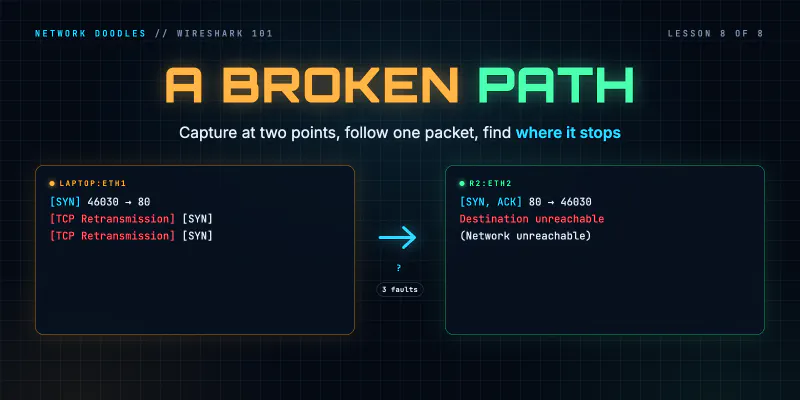
Troubleshooting a Broken Path with Wireshark: Loss, Silent Drops and MTU (Wireshark 101, Lesson 8)
Capture at two points at once and follow one packet: the fault is between the last place you see it and the first you don't. How loss, a silent ACL …
Pipes, Redirection and grep: One Question, One Pipeline (Linux CLI 101, Lesson 3)
Every Linux command reads from stdin and writes to stdout and stderr. Redirect those streams to files, pipe one command into the next, and grep, sort …
Processes, Environment Variables and PATH: Finding What Runs (Linux CLI 101, Lesson 5)
Every running program is a process with a number. How to run jobs in the background, find a process that's eating a CPU and stop it, what TERM and …