Ansible Inventory and Ad-Hoc Commands for Network Switches (Ansible 101 for Networking, Lesson 1)
Ansible for people who run networks, not servers. What Ansible actually does when the target is a switch, how an inventory works, how to point it at a fabric of switches with the CLI you already know, and how to ask all of them a question with one command. Lesson 1 of Ansible 101 for networking, with a hands-on lab.
lesson 1 of 8 · course Ansible 101 for networking
- 1Hello, Ansible
- 2Your first playbook
- 3Variables and facts
- 4Loops, conditionals, templates
- 5Handlers, tags, errors
- 6Roles and collections
- 7Secrets
- 8Run it like production
Most Ansible tutorials lose network engineers in the first five minutes. They install nginx on three Ubuntu
servers, talk about SSH keys and become: true, and somewhere around “now let’s template an Apache vhost” you
close the tab, because none of that is your job.
This course is the one I wish I’d had. Every example is a switch. Every lab task runs against a real leaf-spine fabric. By the end of eight lessons you’ll have roles, a vaulted password, an execution environment and a pipeline, and you’ll know why each of them exists, not just which YAML to paste.
Lesson 1 is the foundation: what Ansible actually does when the thing on the other end is a network device, how an inventory works, and how to ask three switches a question with a single command.
What Ansible is (for us)
Ansible is a tool that makes things match a description. You describe what should be true (“this switch has this banner, these NTP servers, these ports”), Ansible connects to the device, compares, and changes only what’s different. Run it again and nothing happens, because everything already matches. That property has a name, idempotency, and it’s the whole reason Ansible beats a folder of scripts.
Three things to know up front:
- It’s agentless. Nothing gets installed on the switch. Ansible connects in over SSH or an API, does its work, and leaves.
- It’s push. You (or a pipeline) run it. The devices don’t phone home on a schedule.
- For network devices, the code runs on your machine, not on the device. This is the one that trips up people coming from server tutorials. On a Linux server, Ansible copies a small Python program over and runs it there. A switch can’t run arbitrary Python, so network modules run locally on the control node and talk to the device through a connection plugin.
That third point is why network Ansible looks a little different from server Ansible:
| Servers | Network devices | |
|---|---|---|
| Where the module runs | On the server | On your machine (the control node) |
| How Ansible connects | ssh | network_cli (SSH + CLI), httpapi (REST/JSON-RPC), netconf |
gather_facts | Useful | Usually off: there’s no Python on the far end to gather them |
become | sudo | Enable mode, on platforms that have one |
Once you know which connection plugin your platform uses, the rest of Ansible is the same everywhere.
The lab: three switches you don’t have to buy
Every lesson in this course has a lab chapter. The lab is a small leaf-spine fabric of three switches running in containerlab, with a Linux host on each leaf:
             ┌──────────┐
             │  spine1  │
             └─┬──────┬─┘
           Gi1 │      │ Gi2
           Gi1 │      │ Gi1
       ┌───────┴┐    ┌┴───────┐
       │ leaf1  │    │ leaf2  │
       └───┬────┘    └────┬───┘
        Gi2│              │Gi2
         host1          host2
The switches run CapeOS Bolt, a network OS built for labs, with the command line most network engineers
learned first: show running-config, configure terminal, interface GigabitEthernet1, write memory. I
wanted that on purpose for a first Ansible course. Every config line in a playbook is a line you’d type
yourself, and anything Ansible does, you can check by logging in and looking.
None of the ideas here are tied to one vendor. The modules change from platform to platform; inventories, playbooks, variables, roles and vaults don’t.
Meet Ansible
When you install Ansible you get two kinds of thing, and it helps to keep them apart.
ansible-core is the engine: the ansible and ansible-playbook commands, the playbook language, and a
small set of built-in modules (debug, copy, template, set_fact). It knows nothing about switches.
Collections are the drivers: packages of modules and plugins for a platform, usually written by the
vendor or the community, installed and versioned separately from the engine. The lab’s switches speak the
classic IOS-style CLI, so the lab uses the cisco.ios collection, plus ansible.netcommon, which holds
the connection plugins that every network collection builds on.
Every module has a fully qualified name that says which driver you’re calling: cisco.ios.ios_command,
cisco.ios.ios_config, ansible.builtin.debug. You’ll meet collections properly in lesson 6.
ansible --version tells you both what engine you have and which settings it found:
ansible [core 2.20.1]
  config file = /workspaces/ansible-101/ansible.cfg
  ...
That config file line is the one to look at. Ansible reads its settings from an ansible.cfg file,
and the first one it finds wins: the ANSIBLE_CONFIG environment variable, then ansible.cfg in the current
folder, then ~/.ansible.cfg in your home folder, then /etc/ansible/ansible.cfg. The project’s file is where
the inventory path, the output format and, later, the vault settings live. If that line says None, Ansible
isn’t using any of it, and everything else in this post will mysteriously fail. More on that below.
The inventory: who Ansible talks to
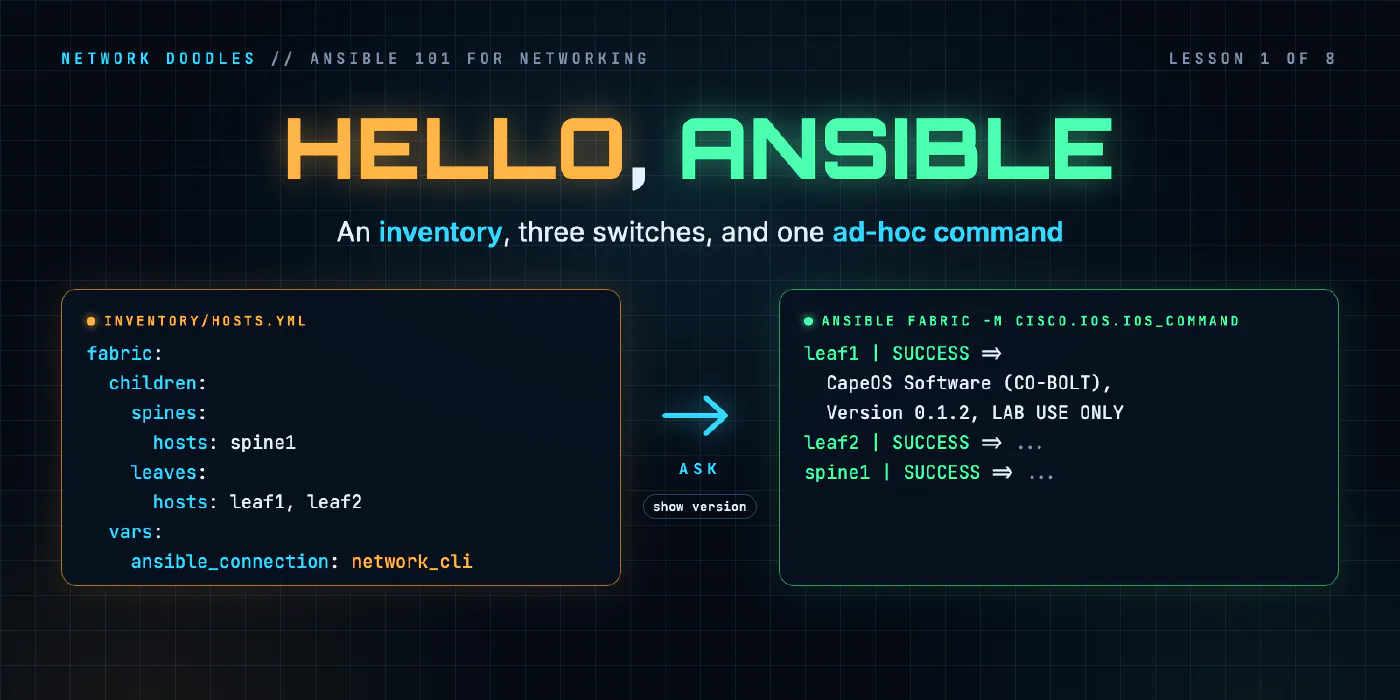
Ansible needs a list of devices. That list is the inventory, and it’s just a file. The lab’s is YAML:
all:
  children:
    fabric:
      children:
        spines:
          hosts:
            spine1:
        leaves:
          hosts:
            leaf1:
            leaf2:
Read it top down:
allis a group Ansible creates for you. Everything is in it.fabricis a group of groups (children). It holds thespinesand theleaves.spinesandleaveshold the actual hosts.
Groups are the most underrated feature in Ansible. They’re how you say “every leaf” or “every switch at the Charlotte site” or “every device that’s managed by the pipeline” without listing hostnames. A host can be in as many groups as you like. Design them around how you talk about the network: by role, by site, by platform.
ansible-inventory --graph reads the file back the way Ansible understands it:
@all:
  |--@ungrouped:
  |--@fabric:
  |  |--@spines:
  |  |  |--spine1
  |  |--@leaves:
  |  |  |--leaf1
  |  |  |--leaf2
If that graph looks right, Ansible knows your network. It doesn’t know how to reach it yet.
Telling Ansible how to connect
Every host needs a handful of connection variables. For the lab’s switches they are:
    fabric:
      vars:
        ansible_connection: ansible.netcommon.network_cli
        ansible_network_os: cisco.ios.ios
        ansible_user: admin
        ansible_password: capeos-lab
ansible_connectionpicks the connection plugin.network_climeans “log in over SSH and type at the CLI”, the way you would. On an API-first platform this would behttpapiornetconfinstead.ansible_network_ostells the plugin which CLI to expect, so it knows what the prompts and error messages look like.- User and password are in plain text, which should make you uncomfortable. Good. Lesson 7 fixes it.
Putting them under fabric: vars: means every switch in the fabric gets them. In lesson 3 we’ll move them out
of the inventory entirely, into group_vars, which is where they belong.
Ad-hoc commands: one module, many switches, no playbook
You don’t need a playbook to use Ansible. An ad-hoc command runs one module against a group of hosts, right from the shell:
ansible fabric -m cisco.ios.ios_command -a "commands='show version'"
That’s: against the fabric group, run the module cisco.ios.ios_command, with these arguments. Ansible
logs in to all three switches at once, types show version, and prints what each one says (as YAML, because
the lab’s ansible.cfg asks for readable output instead of a wall of JSON):
leaf1 | SUCCESS =>
    changed: false
    stdout:
    - |-
        CapeOS Software (CO-BOLT), Version 0.1.2, LAB USE ONLY
        ...
        Processor board ID CAPEQ3I7EKD
        ...
A few things worth noticing:
- The pattern is flexible.
fabric,leaves,leaf1,leaf*,fabric:!spines(every switch except the spines). Same syntax you’ll use in playbooks. - Quoting is where ad-hoc commands bite. Arguments are
key=value, and a show command has spaces in it, so it goes in single quotes inside the double-quoted argument string. Anything with a list or nested data breaks thekey=valueformat in confusing ways. I lost twenty minutes to this building the lab. When in doubt, pass JSON in single quotes. - The CLI’s own tools still work.
show version | include boardfilters on the switch, exactly as it would if you were logged in, and brings back one line instead of a page. - It’s read-only, because the commands are.
ios_commandtypes what you give it, andshowcommands don’t change anything. Ad-hoc commands can change things, which is exactly why I use them almost only for questions: “which version is everything running?”, “who has an interface down?”, “what’s the serial number of leaf1?”
Where people get it wrong
1. Ansible quietly ignoring your config file
Remember the config file = line? Ansible reads ansible.cfg from the folder you run it in, unless that
folder is world-writable, in which case it refuses, because anyone could have planted that file. It prints
one warning and carries on with defaults: no inventory, nothing works, and the error you see is “no hosts
matched”.
I hit this building the lab: Codespaces checks repos out into a world-writable folder. The fix is to name the
file explicitly with the ANSIBLE_CONFIG environment variable, which the lab’s dev container does for you.
If ansible --version ever says config file = None, that’s your problem.
2. Reaching for ping
Every server tutorial starts with ansible all -m ping. On network devices it’s misleading: the ping module
needs Python on the far end, which a switch doesn’t have. Use a read-only module from your platform’s collection
instead, like a show command through ios_command. If it answers, you’re connected.
3. Leaving gather_facts on
Playbooks gather facts by default, which on a network device means a slow failure or a pile of warnings. Every
network play should start with gather_facts: false unless you know you need facts, and then you gather them
with the platform’s own module (cisco.ios.ios_facts, in lesson 3). You’ll see this in every playbook in the
course.
4. One giant all group
An inventory with forty hostnames and no groups works today and hurts forever. You can’t say “the leaves” or “Charlotte”, so every playbook ends up with a hand-maintained host list. Groups cost nothing. Add them before you need them.
Try it
Chapter 1 of the lab opens the fabric in your browser, has you write this inventory, and asks the switches for their versions and leaf1’s serial number with ad-hoc commands.
Next time, in lesson 2, we write a real playbook, change all three switches at once, and prove that running it twice changes nothing.
Related doodles
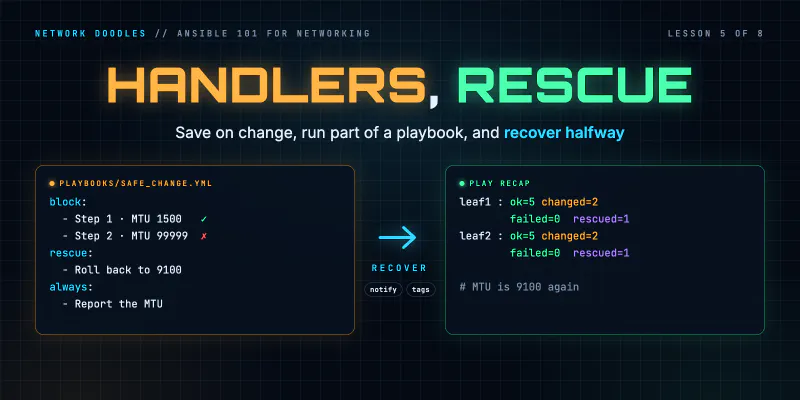
Ansible Handlers, Tags and block/rescue on Network Devices (Ansible 101 for Networking, Lesson 5)
Save the config only when something actually changed with handlers, run just part of a playbook with tags, and recover when a change fails halfway …
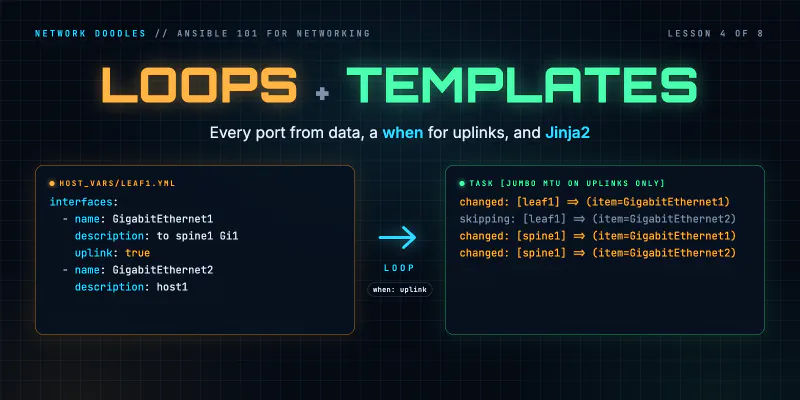
Ansible Loops, when and Jinja2 Templates for Network Config (Ansible 101 for Networking, Lesson 4)
Configure every port on every switch from a list of data with loop, treat uplinks differently with when, and render a report of the whole fabric with …
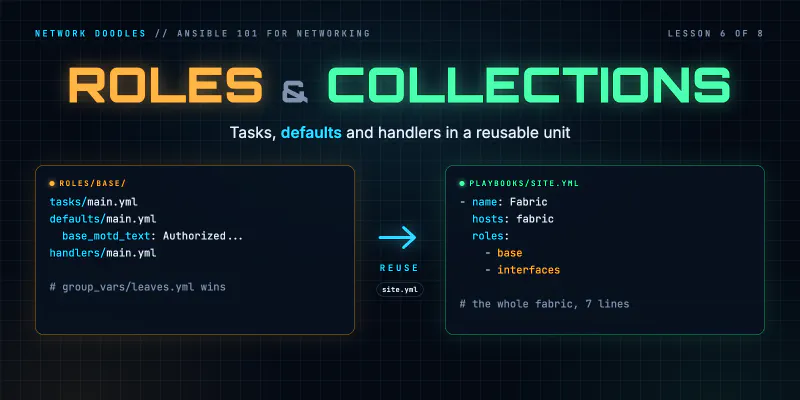
Ansible Roles and Collections for Network Automation (Ansible 101 for Networking, Lesson 6)
Turn a folder of playbooks into roles: tasks, defaults and handlers in a reusable unit, the precedence rule that makes role defaults useful, why role …